Create your account
Signing up creates two things at once: a Sectigo Edge account (your work email and a password) and a workspace request for your organisation. The account cannot open the console until the request has passed email verification, domain verification and approval by Sectigo.
How sign-up works
| Stage | What you do | Page |
|---|---|---|
| 1. Create account | Fill in the sign-up form and choose a password. | This page |
| 2. Confirm email | Open the link sent to your work email and confirm it. | Verify email & domain |
| 3. Prove domain ownership | Publish a DNS TXT record and verify it. | Verify email & domain |
| 4. Approval | Sectigo reviews and approves the workspace. | Workspace approval |
| 5. First sign-in | Sign in and enrol multi-factor authentication. | First login & MFA |
Steps 2 and 3 must be finished within seven days of submitting the form, when the verification link expires.
What you need
- A managed work mailbox on your organisation's domain, for example
alex@example.com. Public email providers (such as Gmail, Outlook.com, Hotmail, Live, Yahoo, iCloud, Proton and AOL) are not accepted. - The enterprise domain you want to register, for example
example.com. Your email must be on this domain or one of its subdomains (alex@eu.example.comworks forexample.com). - Access to that domain's DNS, or someone who can add a TXT record for you. You need this in the next stage.
- Your country's two-letter ISO code, for example
US,GBorDE.
Fill in the sign-up form
- Go to the Sectigo Edge site and select Create your account (or open
/signup). The form is titled Create with email & password. - Enter your First name and Last name.
- Enter your Work email (your username). This address becomes the username you sign in with.
- Enter your Organization name.
- Choose a Password and type it again in Confirm password. See Password rules.
- Enter your Enterprise domain, for example
example.com. You can paste a URL; the form stripshttps://,www.and any path when you leave the field. - Enter your Country code, for example
US. - Wait for the Security check panel to show Complete — registration is ready to submit. This is an automatic abuse-prevention check.
- Tick I am authorized to request a workspace for this organization and accept Sectigo's applicable terms and privacy notice.
- Select Verify organization.
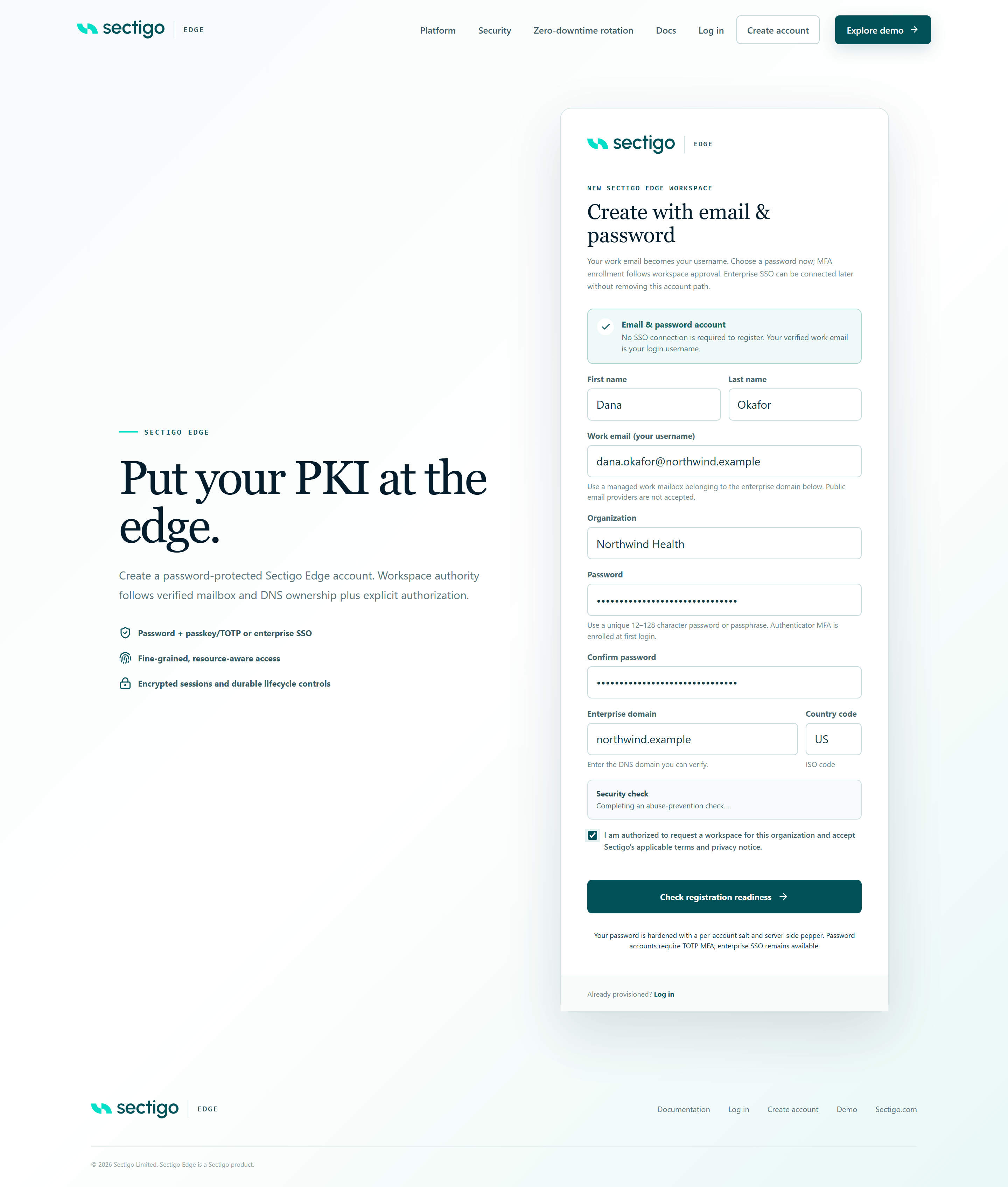
Until everything is ready, the submit button changes its label: Check registration readiness means the security check has not finished, and Review and continue means the consent box is not ticked yet.
Field reference
| Field | Required | Rules |
|---|---|---|
| First name, Last name | Yes | Up to 80 characters each. |
| Work email (your username) | Yes | Up to 320 characters. Must be on the enterprise domain or a subdomain of it. Public mailbox providers are rejected. |
| Organization | Yes | 2–200 characters. |
| Password, Confirm password | Yes | 12–128 characters; both must match. |
| Enterprise domain | Yes | A registrable DNS domain such as example.com, up to 253 characters. Public mailbox domains are rejected. |
| Country code | Yes | Two letters (ISO 3166-1 alpha-2). |
| Consent checkbox | Yes | Confirms you are authorised to request the workspace. |
Password rules
- 12 to 128 characters. A passphrase of several words is a good choice.
- Must not contain your username (the part of your email before the
@, when it is four characters or longer). - Must not contain common password phrases. Well-known weak passwords are rejected.
- Use a password you do not use anywhere else.
Your password is never stored in readable form. You will also enrol multi-factor authentication at your first sign-in; a password alone never opens the console.
What happens next
When the form is accepted you see Check your work email, with your registration ID (for example reg_3f6c2a91-7b4e-4d2a-9c1f-5e8a0b7d4c26). Keep this ID; Sectigo may ask for it.
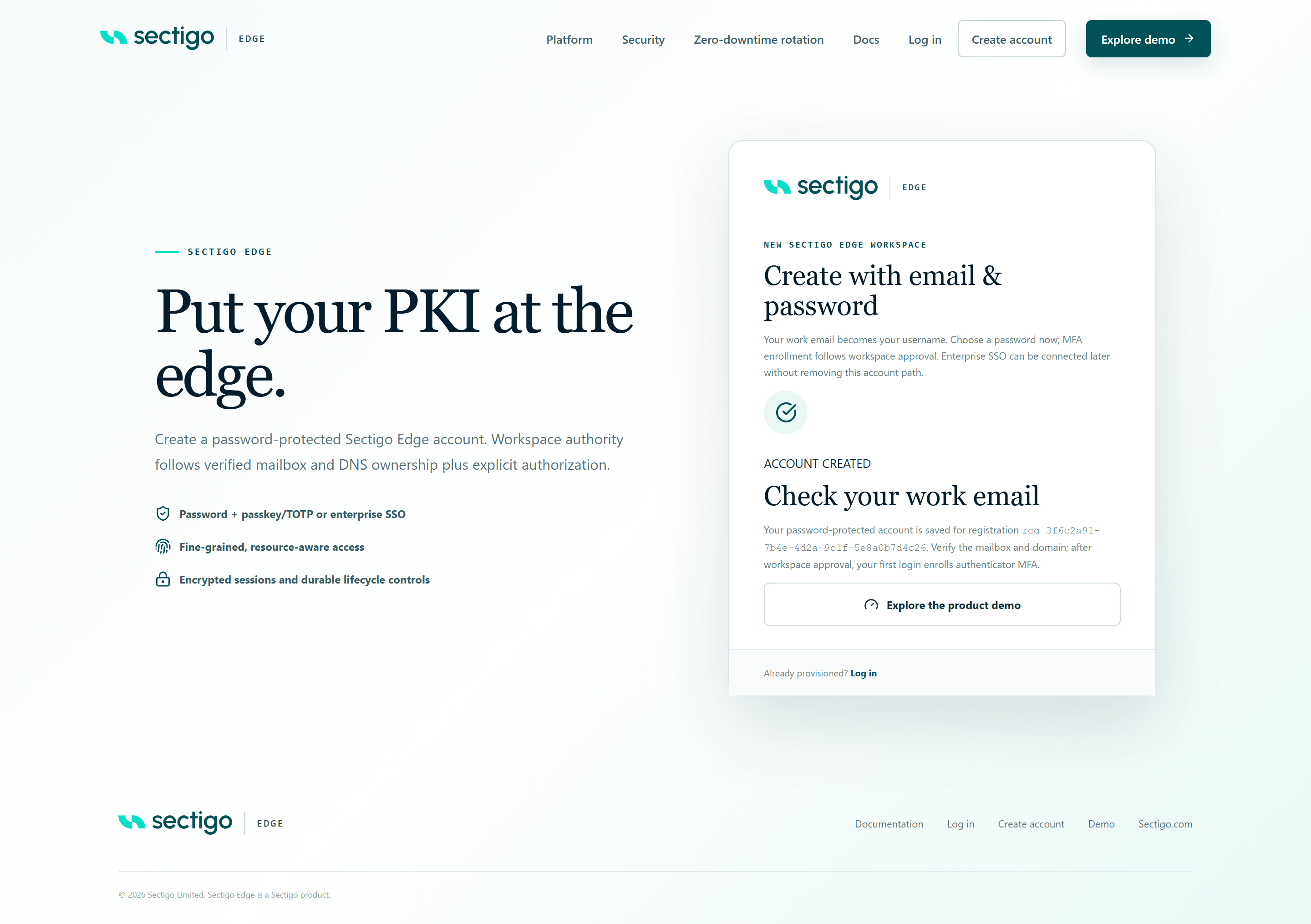
A verification email is sent to your work address. Its subject is Verify your Sectigo Edge workspace request and it contains a Verify work email link that is valid for seven days. Continue with Verify email & domain.
Creating the account does not create a workspace, assign you any role or connect a CA. Those happen only after verification and approval.
Troubleshooting
| Message | Cause | What to do |
|---|---|---|
| Use a work email address belonging to the domain being registered | The email domain does not match the Enterprise domain, or it is a public mailbox. | Use an address on the enterprise domain (or one of its subdomains), or correct the domain. |
| Use your organization's managed DNS domain | The enterprise domain is a public mailbox provider such as gmail.com. | Enter your organisation's own domain. |
| A registrable enterprise DNS domain is required | The domain is malformed (for example missing a dot or ending in a number). | Enter a domain such as example.com. |
| Use a password or passphrase between 12 and 128 characters | Password too short or too long. | Choose a 12–128 character password. |
| Choose a password that does not contain your username or a common password phrase | The password contains your email username or a well-known weak phrase. | Choose a different password. |
| The password confirmation does not match. | The two password fields differ. | Retype both fields. |
| Complete the security check before submitting the workspace request. | The automatic security check has not finished. | Wait a few seconds for the check to complete. |
| The security check could not complete. Disable content blocking for this page or retry the check. | A browser extension, content blocker or network policy blocked the check. | Allow the page in your content blocker, then select Retry in the Security check panel. |
| Workspace registration challenge failed or expired | The security check token expired or was rejected. | The check resets automatically; wait for it to complete and submit again. |
| Confirm that you are authorized to request this workspace and accept the applicable terms. | The consent box is not ticked. | Tick the box. |
| An account already exists for this work email or registration | You have already registered with this email. | Continue with the original request: open the verification email you received earlier. If your workspace is already approved, sign in instead. |
| Too many workspace registration attempts | More than 5 attempts for the same email, or 20 from the same network, within an hour. | Wait an hour and try again. |
| The verification email could not be sent. Try again in a few minutes. | Email delivery failed temporarily. | Submit the same form again after a few minutes. |
| Self-service registration is temporarily unavailable. | Sign-up is switched off for this deployment. | Try later, or contact your Sectigo representative. |
I did not receive the verification email
- Check spam and quarantine folders, and ask your mail administrator whether external mail from Sectigo Edge is being held. Look for the subject Verify your Sectigo Edge workspace request.
- Submitting the same details again (without editing any field) is treated as a retry of the same request. It does not send a second email once the first one was sent.
- If sending failed (you saw The verification email could not be sent), you can simply submit the form again.
- Once a verification email has been sent, a new sign-up with the same work email is refused with An account already exists for this work email or registration until the original request expires after seven days. Recover the original email if you can; otherwise wait for it to expire and register again.