Verify email & domain
After you create your account, you prove two things: that you control the work mailbox you registered with, and that your organisation controls the enterprise domain. Both steps happen on the same verification page, reached from the link in your email.
Email and DNS verification establish ownership only. They do not create a workspace or grant any PKI access. After both steps, your request goes to workspace approval.
What you need
- The verification email, subject Verify your Sectigo Edge workspace request. The link inside is valid for seven days from sign-up.
- Permission to add a TXT record in the public DNS for your enterprise domain, or a colleague who can.
Step 1: Confirm your work email
- Open the verification email and select Verify work email. The page Confirm your work email opens.
- Check that you requested this workspace, then select Confirm work email.
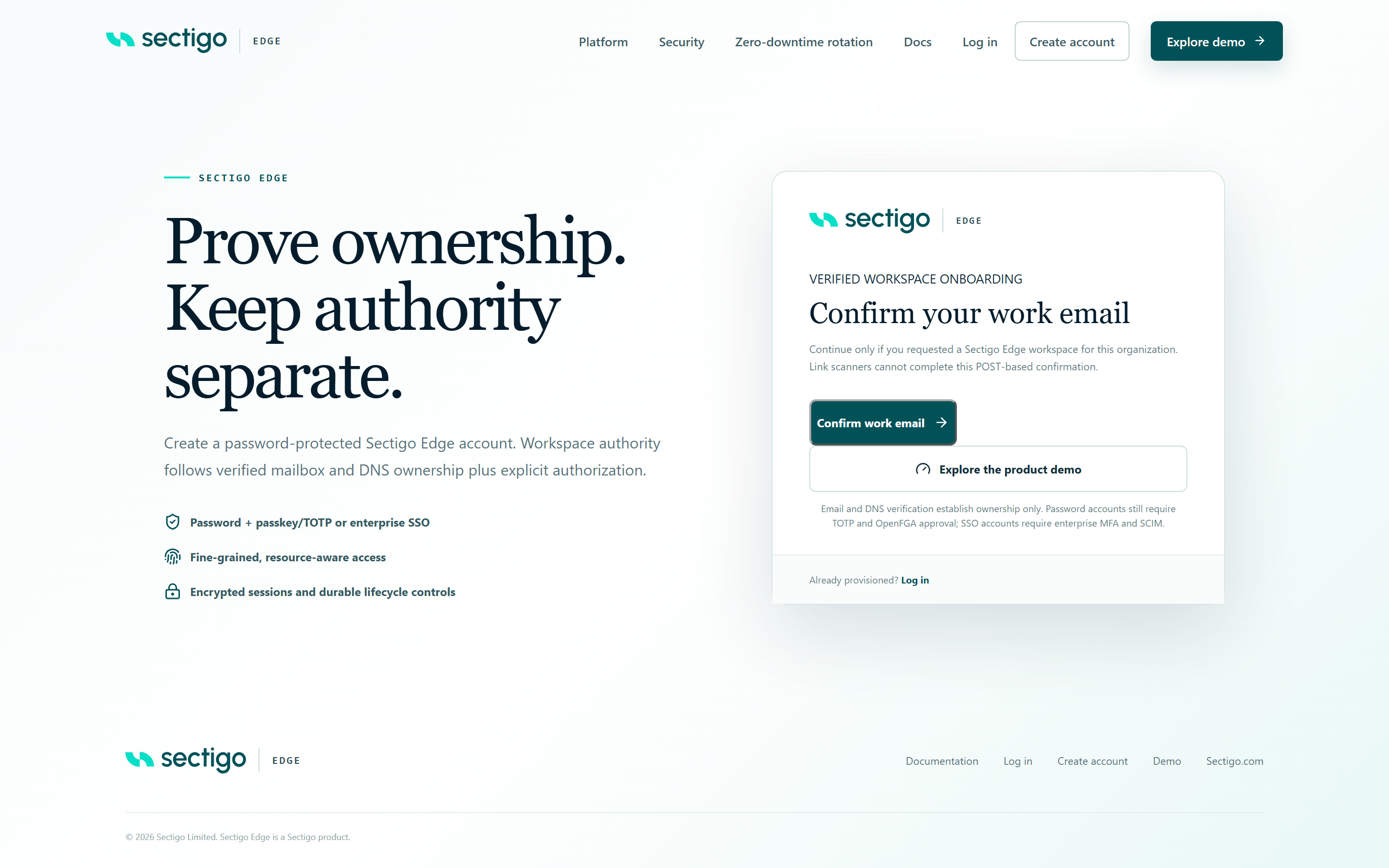
The page then moves straight on to Prove domain ownership.
Keep the email. Opening the same link again at any time within the seven days takes you to wherever you left off, for example straight to the DNS step.
Step 2: Publish the DNS TXT record
The Prove domain ownership step shows the exact record to add at your authoritative DNS provider.
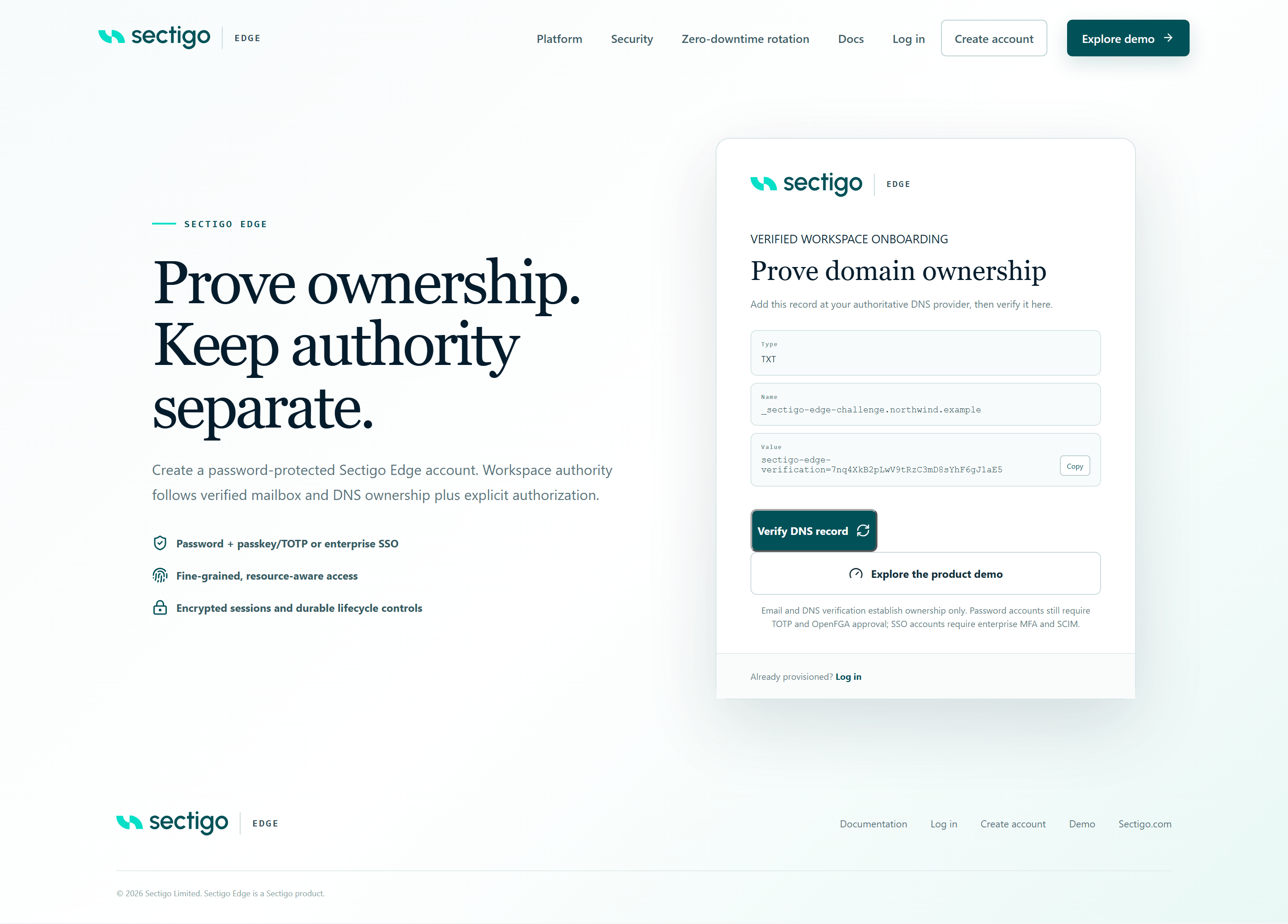
| Setting | Value |
|---|---|
| Type | TXT |
| Name | _sectigo-edge-challenge.<your domain>, for example _sectigo-edge-challenge.example.com |
| Value | sectigo-edge-verification=<token>, exactly as shown on the page |
| TTL | Any. A short TTL such as 300 seconds helps if you need to correct a mistake. |
The token is unique to your request. Copy it from the page; do not reuse a value from an earlier request or from these docs.
Most DNS panels add your domain to the name automatically. If yours does, enter only _sectigo-edge-challenge as the name. Entering the full name in such a panel creates _sectigo-edge-challenge.example.com.example.com, which will not verify.
Provider examples
The steps below are generic; menu names vary slightly between providers. Replace example.com and the value with the ones shown on your verification page.
- Web DNS panel
- Zone file (BIND)
- Windows DNS Server
- Azure CLI
- Google Cloud CLI
Most hosted DNS services (for example Cloudflare, AWS Route 53, Azure DNS, Google Cloud DNS, or your domain registrar) follow the same pattern:
- Open the DNS zone for your domain.
- Choose Add record (or Create record).
- Set the type to TXT.
- Set the name or host to
_sectigo-edge-challenge(or the full name, if your panel does not append the domain). - Paste the value
sectigo-edge-verification=…from the verification page. Do not add extra text. - Save the record.
Add this line to the zone file for example.com, increment the SOA serial, and reload the zone:
_sectigo-edge-challenge 300 IN TXT "sectigo-edge-verification=Tm9ydGh3aW5kSGVhbHRoRG5zQ2hhbGw"
On a Windows DNS server that is authoritative for the public zone:
Add-DnsServerResourceRecord -ZoneName "example.com" -Txt -Name "_sectigo-edge-challenge" -DescriptiveText "sectigo-edge-verification=Tm9ydGh3aW5kSGVhbHRoRG5zQ2hhbGw" -TimeToLive 00:05:00
az network dns record-set txt add-record \
--resource-group my-dns-rg \
--zone-name example.com \
--record-set-name _sectigo-edge-challenge \
--value "sectigo-edge-verification=Tm9ydGh3aW5kSGVhbHRoRG5zQ2hhbGw"
gcloud dns record-sets create _sectigo-edge-challenge.example.com. \
--zone=example-com --type=TXT --ttl=300 \
--rrdatas='"sectigo-edge-verification=Tm9ydGh3aW5kSGVhbHRoRG5zQ2hhbGw"'
The record must be in your public DNS. Sectigo Edge looks it up through a public resolver on the internet, so records that exist only on internal or split-horizon DNS servers are not visible to it.
Step 3: Check the record yourself
Before you select Verify DNS record, confirm the record is visible publicly. Each verification attempt counts towards a limit of 10 per hour, so checking first saves attempts.
- Linux / macOS
- Windows
dig +short TXT _sectigo-edge-challenge.example.com @1.1.1.1
"sectigo-edge-verification=Tm9ydGh3aW5kSGVhbHRoRG5zQ2hhbGw"
Resolve-DnsName -Type TXT -Name _sectigo-edge-challenge.example.com -Server 1.1.1.1
Name Type TTL Section Strings
---- ---- --- ------- -------
_sectigo-edge-challenge.example.com TXT 300 Answer {sectigo-edge-verification=Tm9ydGh3aW5kSGVhbHRoRG5zQ2hhbGw}
Or with nslookup:
nslookup -type=TXT _sectigo-edge-challenge.example.com 1.1.1.1
Non-authoritative answer:
_sectigo-edge-challenge.example.com text =
"sectigo-edge-verification=Tm9ydGh3aW5kSGVhbHRoRG5zQ2hhbGw"
The value returned must match the value on the verification page exactly, character for character. Other TXT records at the same name do not cause a problem, as long as one of them matches.
Step 4: Verify
- Return to the verification page (open the email link again if you closed it).
- Select Verify DNS record.
- When the record is found, the page shows Domain ownership verified.
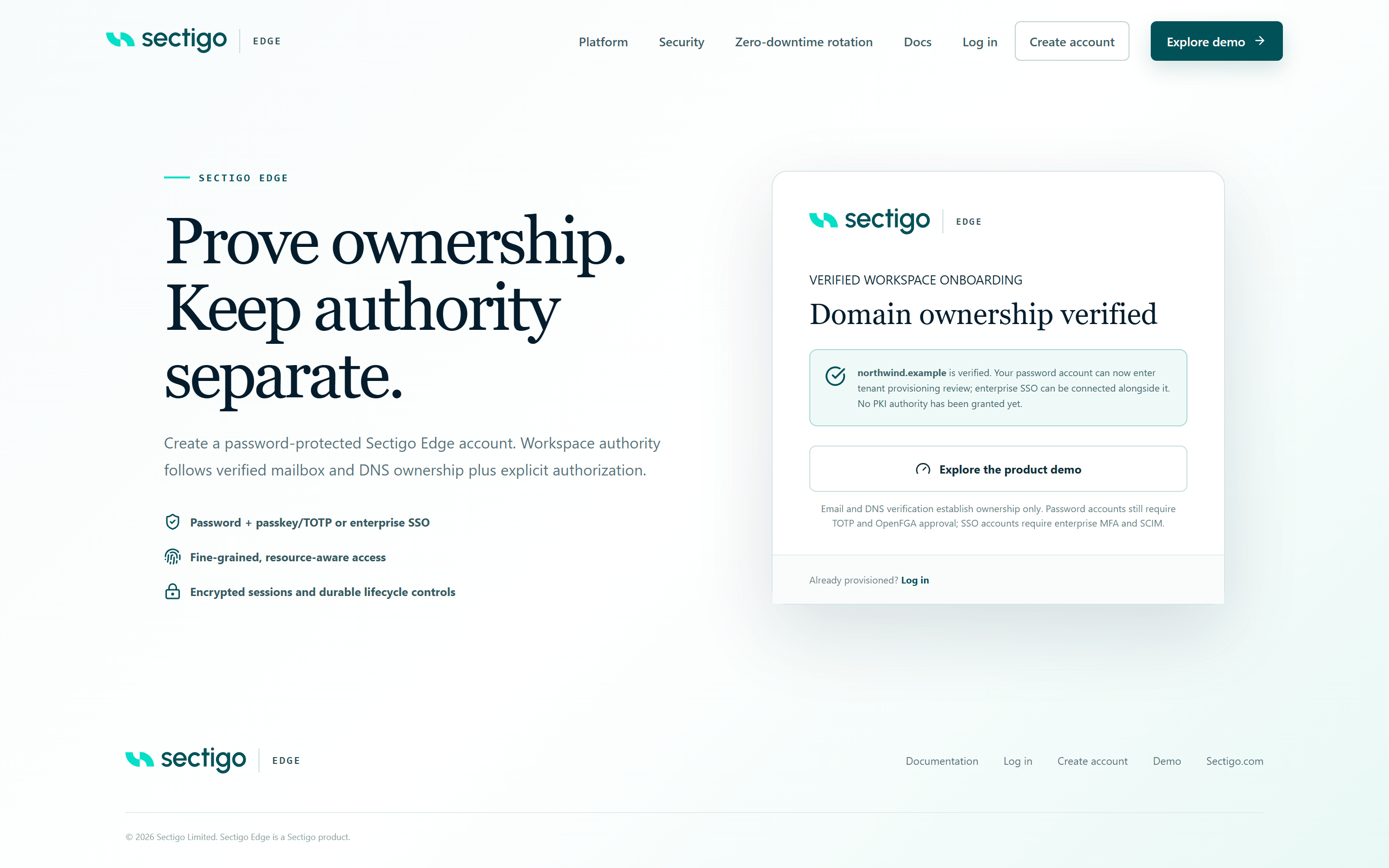
Once the domain shows as verified, it is not checked again. You can remove the TXT record afterwards if your DNS policy requires it.
What happens next
Your request moves to provisioning review by Sectigo. Nothing else is required from you right now. See Workspace approval for what to expect.
Troubleshooting
| Message | Cause | What to do |
|---|---|---|
| This verification link is incomplete. | The link was cut off, for example when copied across two lines. | Open the link directly from the email, or copy the whole URL including everything after #. |
| Workspace registration was not found | The link does not match a registration, or the request was removed after expiring. | Use the link from your most recent verification email. If the request expired, sign up again. |
| Workspace registration has expired | More than seven days have passed since sign-up. | Sign up again. |
| Verify the work email before proving domain ownership | The DNS check was attempted before the email was confirmed. | Select Confirm work email first. |
| The expected DNS TXT challenge was not found | The public resolver did not return a TXT record with the exact value at the exact name. | See Record not found below. |
| Too many domain verification attempts | More than 10 verification attempts for this request within an hour. | Wait up to an hour, fix the record using the checks in Step 3, then try again. |
| Domain verification is temporarily unavailable | The DNS lookup service could not be reached. | Try again in a few minutes. This does not mean your record is wrong. |
Record not found
Work through these checks in order:
- Name doubled. Run the
digorResolve-DnsNamecheck above. If nothing comes back, look in your DNS panel for a record named_sectigo-edge-challenge.example.com.example.comand correct it. - Wrong zone. If you registered a subdomain such as
pki.example.com, the record name is_sectigo-edge-challenge.pki.example.com. Check the exact name shown on the verification page. - Value changed. Compare the returned value with the page. Extra spaces, a missing
sectigo-edge-verification=prefix, or a value from an older request will not match. The comparison is case-sensitive. - Not yet propagated. Some providers take several minutes to publish changes. If you checked before the record existed, public resolvers may cache the "no record" answer for a while (often up to the negative-cache TTL in your zone's SOA record). Wait and check again with
dig ... @1.1.1.1. - Internal DNS only. The record must be published on the public, authoritative name servers for the domain, not only on internal DNS.