Console tour
This page walks through the console layout so you know where everything lives. Each screen has its own page in the Console guide; this tour links to them.
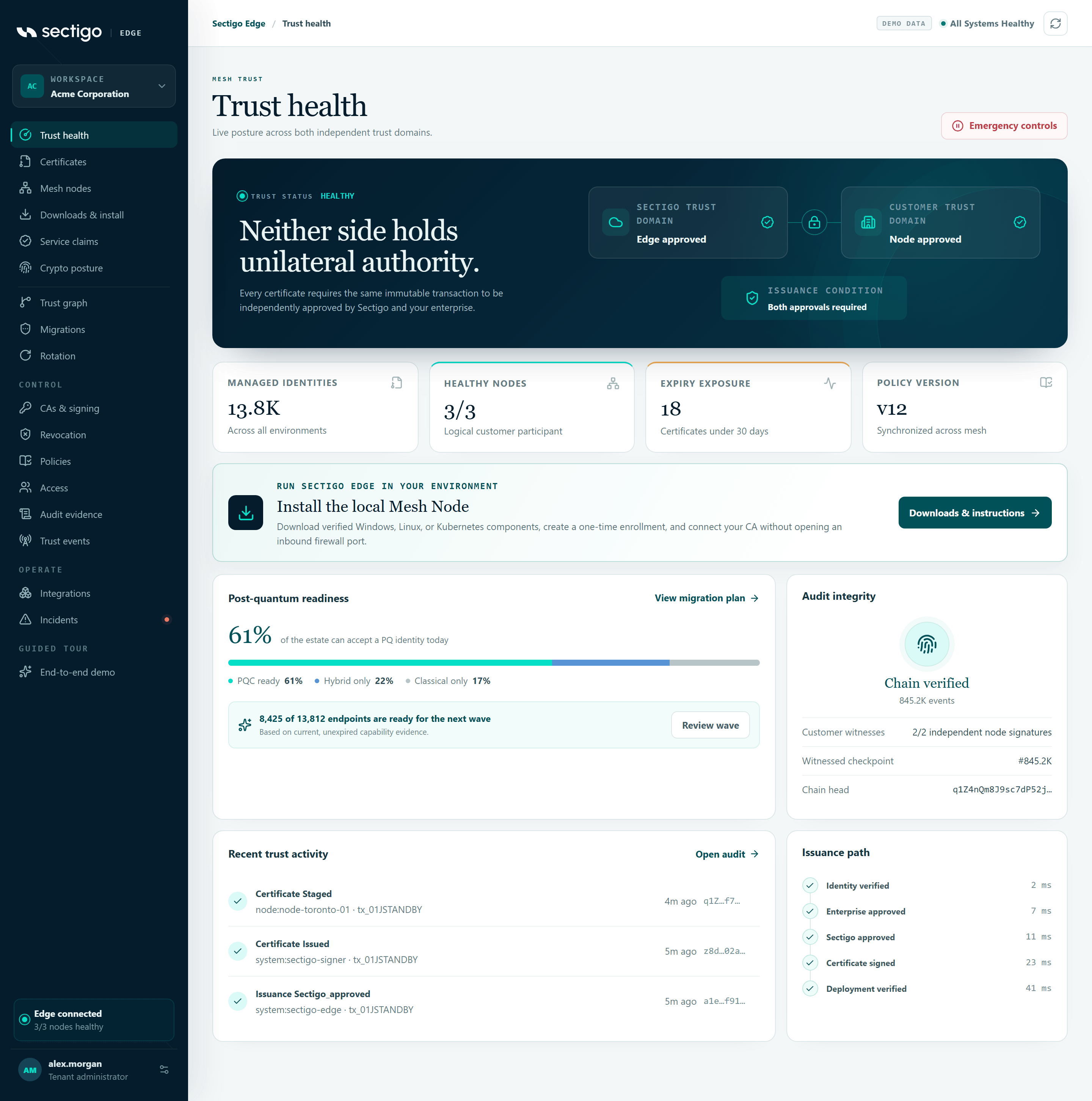
Layout at a glance
| Area | What it shows |
|---|---|
| Sidebar, top | The Sectigo EDGE logo and the WORKSPACE block with your workspace name. |
| Sidebar, navigation | Every console screen, grouped into sections (see below). |
| Sidebar, bottom | The edge status indicator and your account button. |
| Top bar | A breadcrumb (Sectigo Edge / page name), the overall trust status, and a Refresh button. |
| Page header | The page title, a one-line description and the main action for that screen, if any. |
Sidebar navigation
The navigation is grouped into three blocks. The first block (with no heading) covers day-to-day trust operations; Control holds the screens that govern signing, policy and access; Operate holds integrations and incident response.
Trust operations
| Sidebar item | Use it to | Guide |
|---|---|---|
| Trust health | See live posture across both trust domains, node health, migration readiness and audit status. Also holds Emergency controls. | Overview & trust health |
| Certificates | Browse every managed identity, its lifecycle state and deployment slots; request or revoke certificates. | Certificates |
| Mesh nodes | Check node health and versions, view the approval quorum, and start a node enrolment. | Mesh nodes |
| Downloads & install | Get signed node packages for Linux, Windows and Kubernetes, CLIs and verification material. | Downloads |
| Service claims | Verify and claim workloads and AI agents that Mesh Nodes have discovered. | Service claims |
| Crypto posture | Review your algorithm mix and post-quantum readiness. | Crypto posture |
| Trust graph | See dependencies between services, certificates, CAs and nodes. | Trust graph |
| Migrations | Plan, approve, canary and roll out cryptographic changes. | Migrations |
| Rotation | Stage, verify, promote and roll back dual-slot certificates. | Rotation |
Control
| Sidebar item | Use it to | Guide |
|---|---|---|
| CAs & signing | Connect Sectigo SCM or bring an existing issuing CA; check signing provider health. | CAs & signing |
| Revocation | Check and publish CRL and OCSP status per CA. | Revocation |
| Policies | View the effective policy stack, propose policy changes and review the approval queue. | Policies |
| Access | Manage users, roles and the SCIM provisioning connector. | Access & roles |
| Audit evidence | Inspect the hash-chained audit log and export portable proof. | Audit evidence |
| Trust events | Follow the stream of signed, security-relevant events. | Trust events |
Operate
| Sidebar item | Use it to | Guide |
|---|---|---|
| Integrations | Configure delivery targets such as NGINX, Apache, Java keystores, HashiCorp Vault and Sectigo SCM. | Integrations |
| Incidents | Use the issuance kill switch, handle break-glass requests and review incident history. A marker appears next to Incidents while an incident is active. | Incidents & break-glass |
Status indicators
Two indicators summarise the state of your workspace wherever you are in the console.
Top bar status (right side of the top bar):
| Label | Meaning |
|---|---|
| trust path healthy | All Mesh Nodes are healthy and trust status is healthy. |
| No Mesh Nodes connected | Your workspace has no enrolled nodes yet, so nothing can be issued. |
| Degraded · 2/3 nodes healthy | Some nodes are not healthy (the numbers vary). |
| Degraded | Nodes are healthy but overall trust status needs attention. |
| issuance paused | The issuance kill switch is active. |
Edge status (bottom of the sidebar):
| Label | Meaning |
|---|---|
| No Mesh Nodes yet | Enrol a node to connect your edge. |
| Edge connected | Every node is healthy (for example 3/3 nodes healthy). |
| Edge degraded | At least one node is not healthy. |
Your account
Select your name at the bottom of the sidebar to open Account & session. It shows:
- Your email, groups and whether MFA is verified.
- Workspace (your tenant ID), Authentication (Sectigo Edge account or Enterprise SSO), MFA method and Provisioning status.
- For password accounts, the Passkeys section where you add or revoke passkeys. See First login & MFA.
- A Manage access button that opens the Access screen.
On a phone or small screen
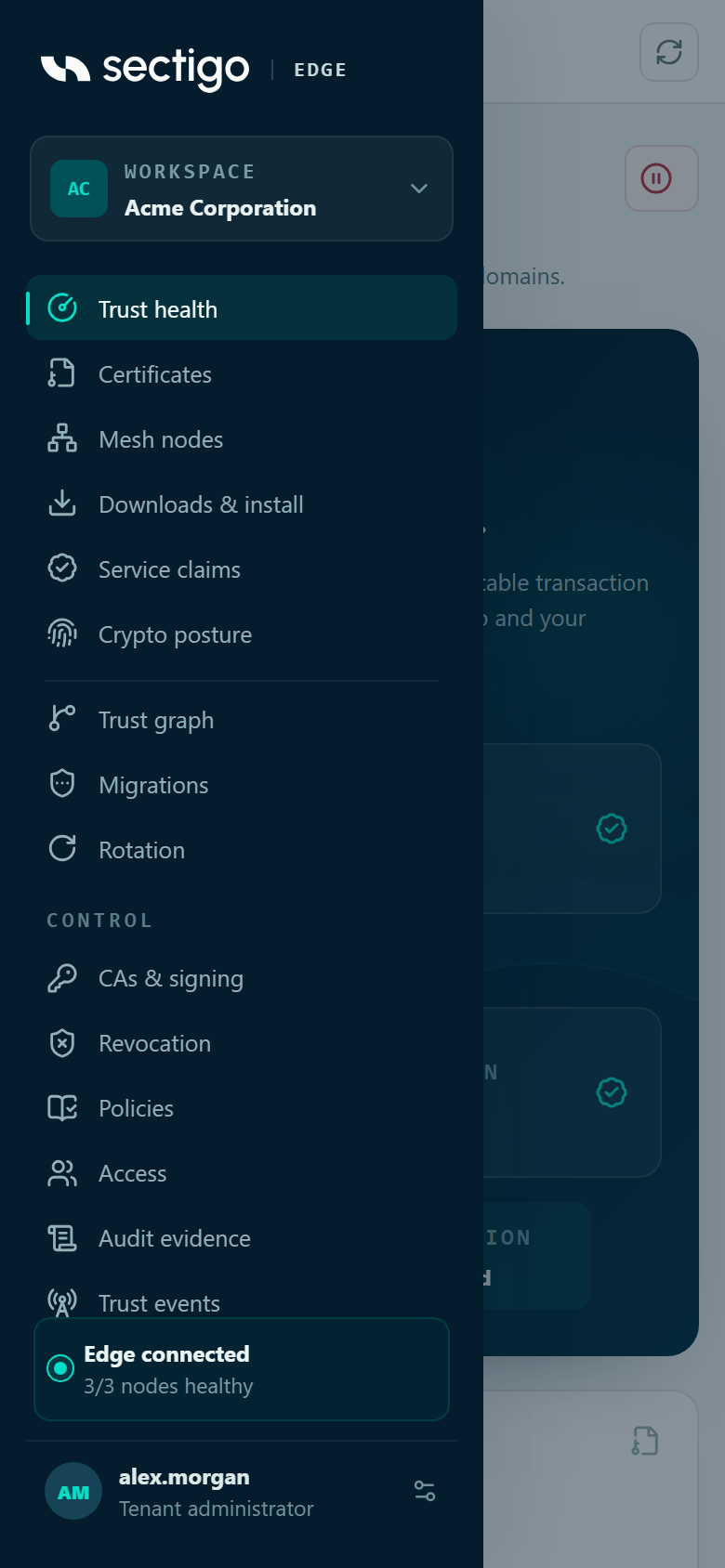
The sidebar collapses. Use the menu button at the top left (Open navigation) to show it, and tap outside it to close.
The product demo
The demo console at /console/demo uses isolated sample data for a fictional company (Acme Corporation) and never grants production access. It shows a DEMO DATA label in the top bar and adds a Guided tour → End-to-end demo item to the sidebar that walks through issuance, workload identity, agent trust and rotation step by step.
Where to start on day one
A new workspace has no nodes, CAs or certificates yet. A typical first session:
- Open CAs & signing and connect a CA.
- Open Downloads & install, then install and enrol your first Mesh Node.
- Review the active policy in Policies and propose changes for your estate. See Policies.
- Give colleagues roles under Access. See Access & roles.
- Connect an integration and watch your first certificate appear under Certificates.