Mesh nodes
Mesh Nodes are your side of the dual-control trust model. They run in your environment, connect outbound only, and independently approve every certificate transaction. The Mesh nodes screen shows each enrolled node and whether together they can meet your approval quorum.
ConsoleMesh nodesWhat it's for
- See whether your nodes are healthy and up to date.
- Check that enough healthy nodes exist to meet the approval quorum.
- Create a one-time enrollment package for a new node.
What you see
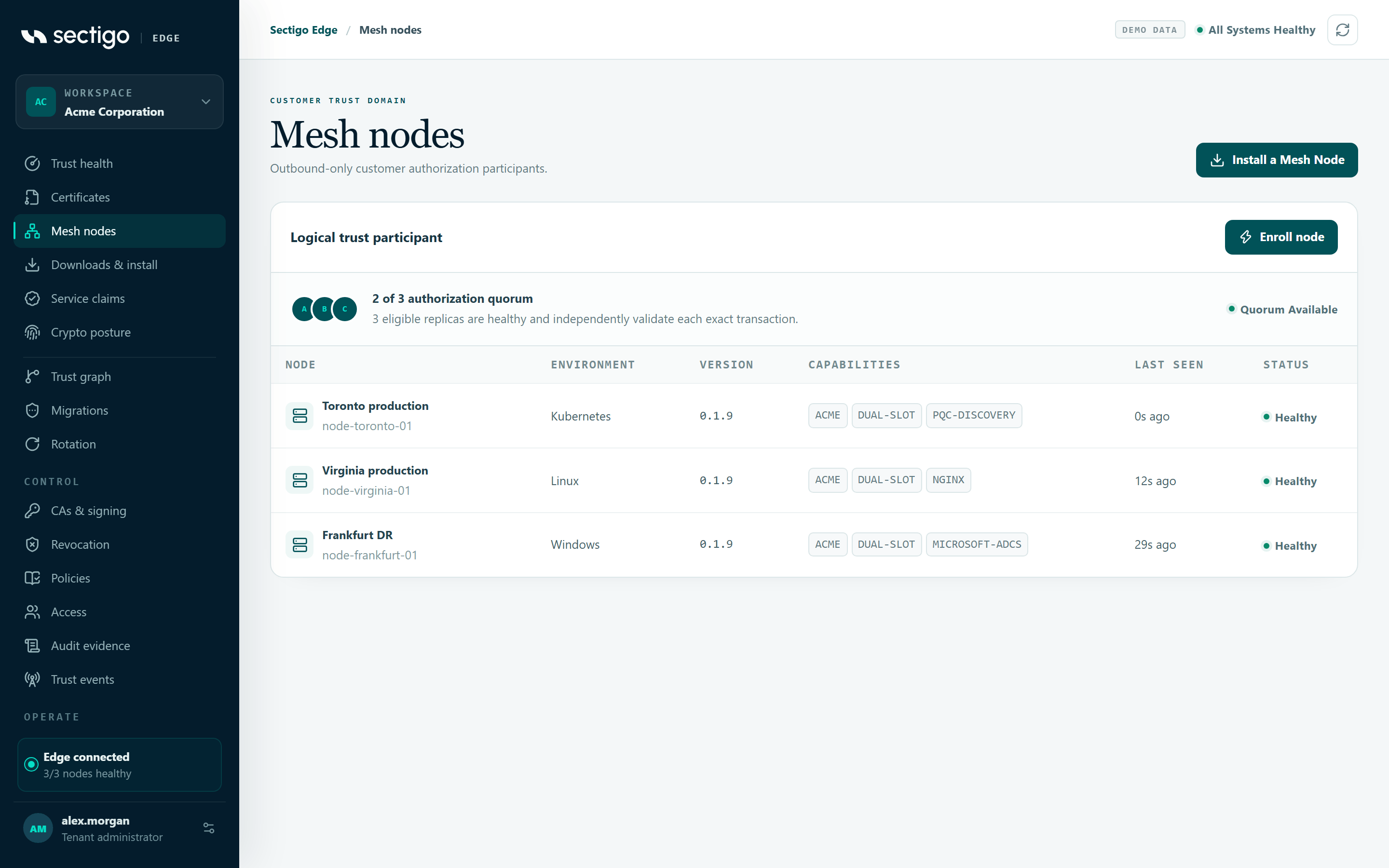
The page header has Install a Mesh Node, which opens Downloads & install. The card, titled Logical trust participant, has an Enroll node button.
Quorum summary
The top of the card reads r of e authorization quorum, where r is the number of distinct node approvals required for each transaction and e is the number of eligible nodes. Underneath: h eligible replicas are healthy and independently validate each exact transaction.
| Status | Meaning |
|---|---|
| Quorum available | Enough healthy eligible nodes exist to approve new transactions. |
| Quorum unavailable | Too few healthy nodes. New issuance and approval-dependent renewals fail closed until nodes recover. Existing certificates keep working. |
The required quorum comes from your policy (Distinct node approvals) and can never be lower than the Sectigo platform minimum. You can also pin which nodes are eligible. See Policies.
Node table
| Column | Content |
|---|---|
| Node | Node name and node ID. |
| Environment | Platform the node reports, for example linux or windows. |
| Version | Mesh Node software version. |
| Capabilities | Up to three capability tags the node advertises. |
| Last seen | Time since the node last checked in, for example 2m ago. |
| Status | healthy, degraded, offline or disabled. |
Enroll a node
Enrollment creates a signed, one-time bootstrap package for exactly one node. You download it here and give it to the node installer.
- Select Enroll node (or Create enrollment on the Downloads & install screen).
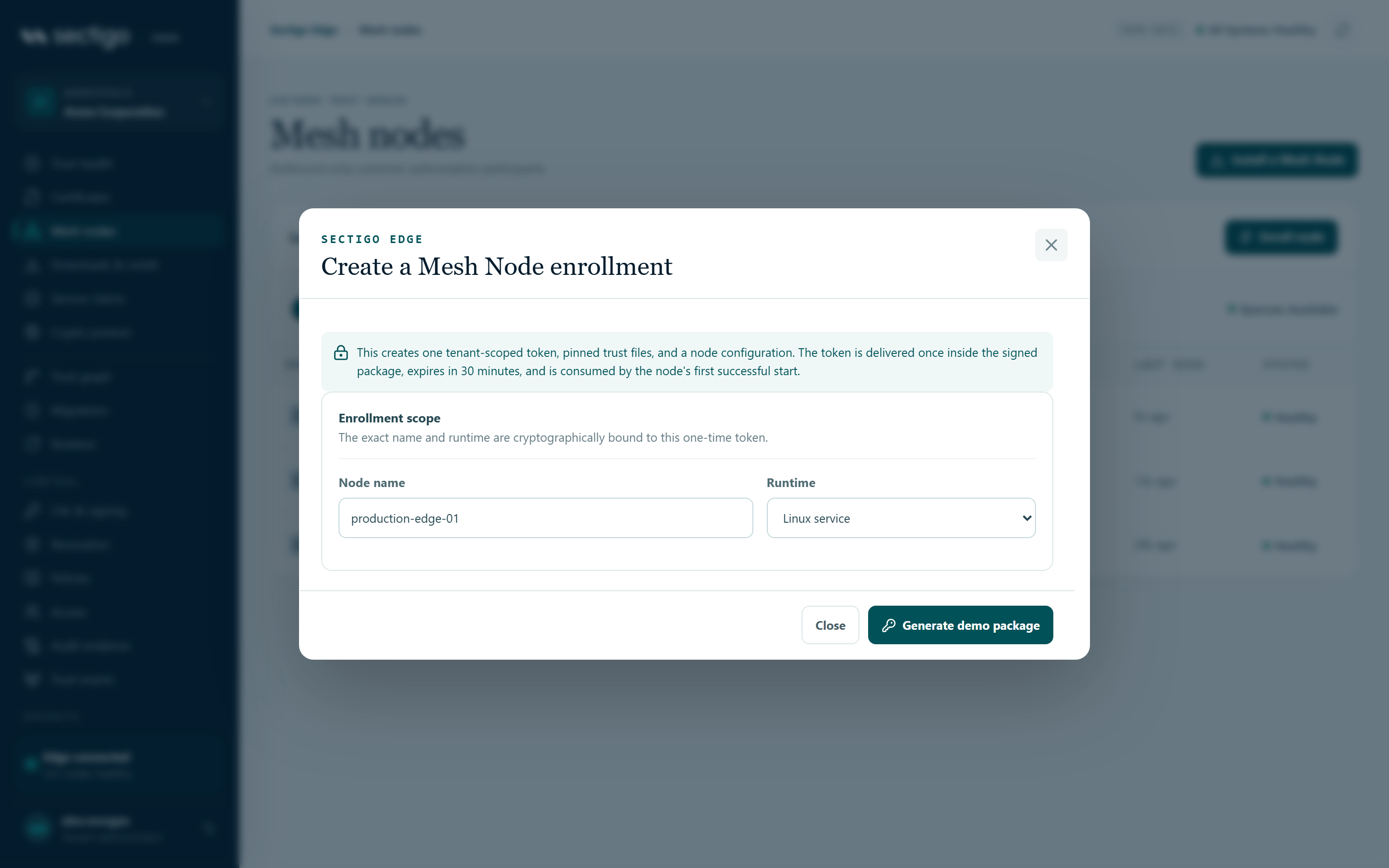
- In Create a Mesh Node enrollment, enter a Node name. The default is
production-edge-01. The name must be at least two characters. - Choose the Runtime: Linux service, Windows service or Kubernetes / Helm.
- Select Create one-time package.
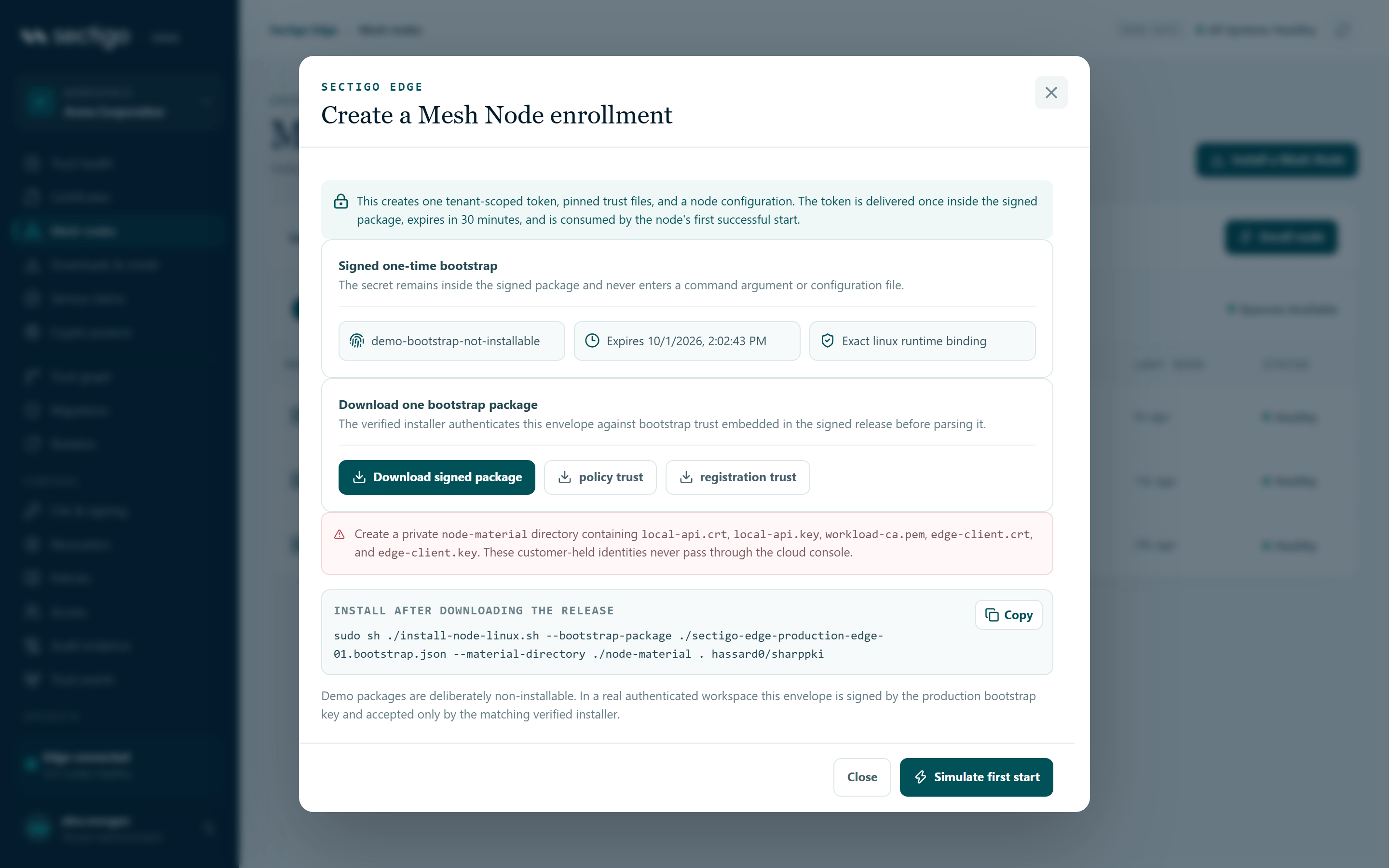
- Select Download signed package. Optionally also download policy trust and registration trust.
- Prepare the
node-materialdirectory described below, then run the install command shown in the dialog on the target machine. - Select Open component downloads if you still need the installer and binaries, or Close.
What the package contains
| Item | File | Purpose |
|---|---|---|
| Signed bootstrap package | sectigo-edge-<node-name>.bootstrap.json | The one-time enrollment token, sealed inside a signed envelope. The node name in the file name is lower-cased and limited to letters, digits, ., _ and -. |
| Policy trust | policy-trust.json | Pinned public keys the node uses to verify signed policy. |
| Registration trust | registration-trust.json | Pinned public keys the node uses to verify service registration grants. |
After you create the package, the dialog summarizes:
- the bootstrap signing key ID,
- Expires with the exact expiry time,
- Exact linux runtime binding (or
windows/kubernetes), confirming the platform the package is locked to.
- The enrollment token expires 30 minutes after you create the package.
- It is consumed by the node's first successful start.
- It is shown only once, inside the signed package. It never appears in a command argument or configuration file.
- The node name and runtime are cryptographically bound to the token. A package created for Linux will not enroll a Windows node.
If the package expires or you lose it, create a new one.
Customer-held TLS material
Before installing, create a private node-material directory containing these five files. They are your own identities and never pass through the cloud console:
| File | Purpose |
|---|---|
local-api.crt | Certificate for the node's local API |
local-api.key | Private key for the local API |
workload-ca.pem | CA that issues your workload client certificates |
edge-client.crt | Client certificate the node presents to Sectigo Edge |
edge-client.key | Private key for that client certificate |
Install commands shown in the dialog
The dialog shows a ready-to-copy command for Linux and Windows packages. Run it in the directory where you downloaded the release files.
- Linux
- Windows
sudo sh ./install-node-linux.sh --bootstrap-package ./sectigo-edge-production-edge-01.bootstrap.json --material-directory ./node-material . hassard0/sharppki
.\install-node-windows.ps1 -Binary .\edgepki-node-windows-amd64.exe -BootstrapPackage .\sectigo-edge-production-edge-01.bootstrap.json -MaterialDirectory .\node-material -ReleaseDirectory .
For Kubernetes / Helm packages the dialog does not show an install command. Use the Helm chart from Downloads & install and the Kubernetes (Helm) guide.
The installer stages and validates all trust and TLS material before changing the machine, starts the service, waits for enrollment, and confirms the consumed token was deleted. When the node checks in, it appears in the node table.
For the full procedure, see Enroll a Mesh Node.
In the demo, the button reads Generate demo package and the package is deliberately not installable. Simulate first start adds a healthy demo node to the table.
Permissions
| Action | Roles |
|---|---|
| View nodes and quorum | Every role |
| Create an enrollment package | PKI Operator, Tenant Admin. Requires MFA within the last ten minutes. |
Troubleshooting
| Symptom | Cause and fix |
|---|---|
| Create one-time package is greyed out | The node name is shorter than two characters, or a package is already being created. |
| An error appears under the form | The package could not be created. The message comes from the service; a common cause is MFA older than ten minutes. Sign in again and retry. |
| The installer rejects the package | The package expired (30 minutes), was already consumed, or was created for a different runtime. Create a new package. |
A node shows offline | It has not checked in recently. Check the service on the host and its outbound connectivity. See Troubleshooting. |
| Quorum unavailable | Restore unhealthy nodes or enroll additional nodes. If you pinned eligible nodes in policy, only those count. |