Enrollment
Enrollment binds a new Mesh Node's hardware key to your workspace. You create a signed, one-time bootstrap package in the console, and the platform installer verifies it, installs the node and lets it enroll on first start. The enrollment token inside the package is never shown on screen, never placed in config.json, an environment variable, a command-line argument or installer output, and it is deleted by the node as soon as enrollment succeeds.
Who can enroll a node
You need the can_manage_nodes permission and a fresh MFA session (you may be asked to re-authenticate). See Access and roles.
Create the enrollment package
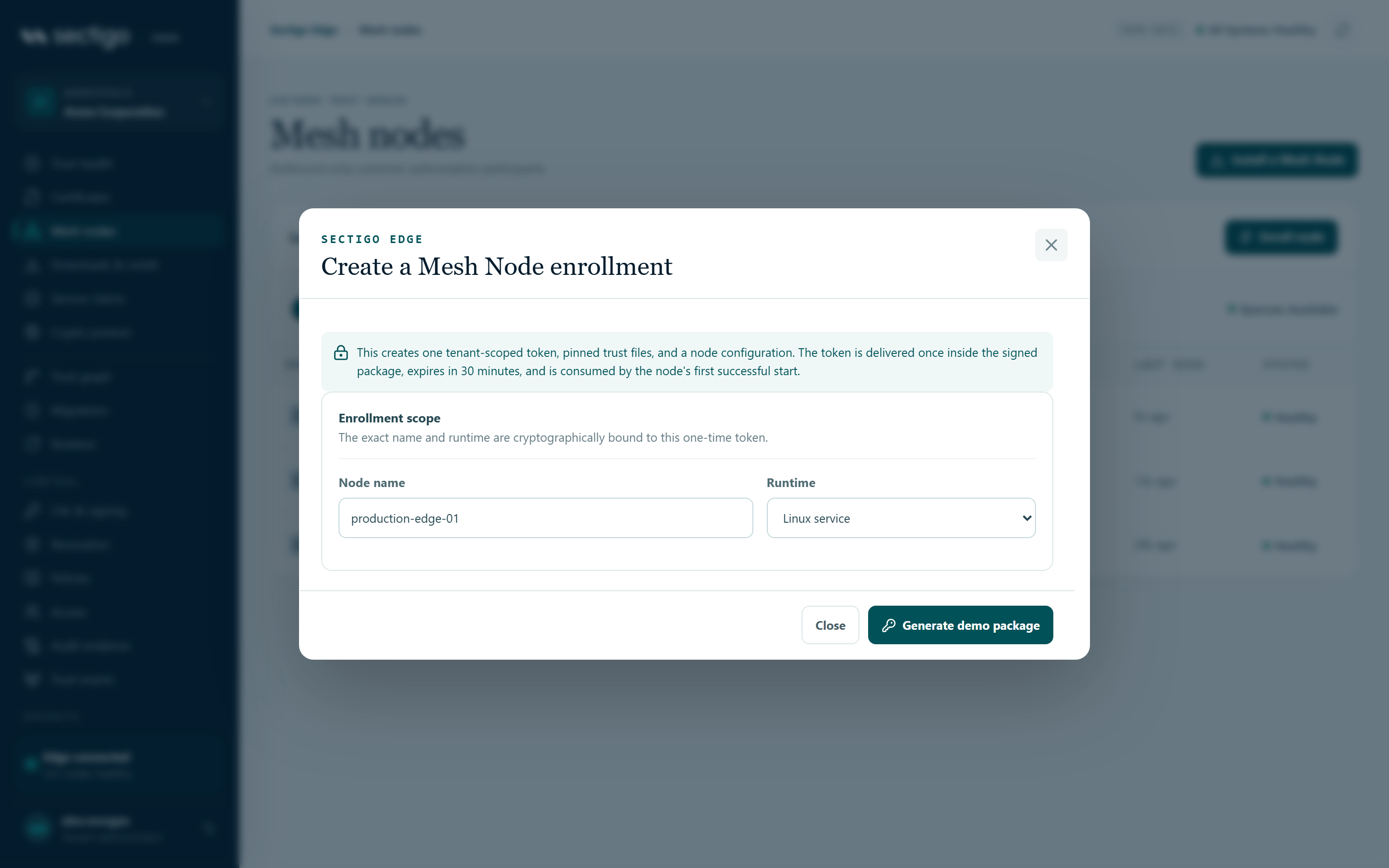
- Open ConsoleMesh nodes and select Enroll node (or Create enrollment on ConsoleDownloads & install).
- Enter the Node name (2–128 characters; it must start with a letter or digit). The name is cryptographically bound to the token.
- Choose the Runtime: Linux service, Windows service or Kubernetes / Helm. The package only installs on that runtime.
- Select Create one-time package.
- Select Download signed package. The file is named
sectigo-edge-<node-name>.bootstrap.json. For Kubernetes, also download policy trust and registration trust.
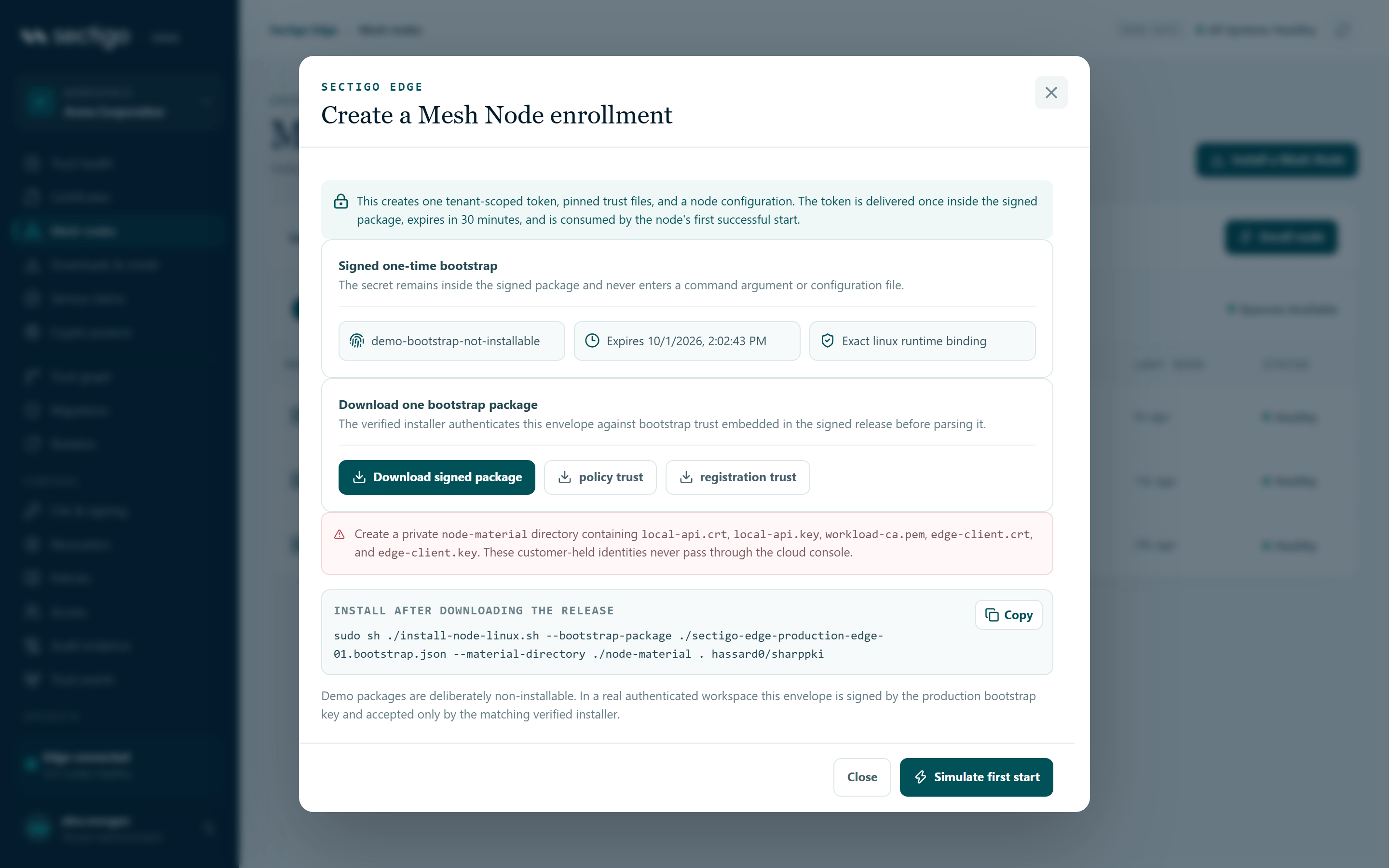
The dialog then shows the install command for your runtime and a reminder to prepare the node-material directory. Continue with Install on Linux, Install on Windows or Kubernetes / Helm.
What is in the package
The package is a JSON envelope (sectigo-edge.node-bootstrap-envelope.v1) containing a payload, its SHA-256 digest, a signing key ID and an Ed25519 signature. The payload carries:
| Field | Meaning |
|---|---|
package_id | Identifier of this enrollment (enroll_…) |
tenant_id, node_name, platform | Exact scope the token is bound to |
issued_at, expires_at | Validity window. The console creates 30-minute packages; the installers reject any package valid for more than one hour. |
enrollment_token | The one-time token (spki_enroll_…) |
config | The node configuration for that platform, with fixed file locations and a hardware key provider (tpm2 on Linux, windows_cng on Windows) |
policy_trust, registration_trust | Your workspace's pinned policy-signing and registration-signing public keys |
How the installer authenticates the package
Before it parses any path or writes the token, the installer:
- pins the exact GitHub repository, release workflow, tag and OIDC issuer and verifies the release's Sigstore signature over
SHA256SUMS; - checks the digest of every installer artifact, including
bootstrap-trust.json; - selects the package's signing key from
bootstrap-trust.json(exactly one match is required); - verifies the package digest, the Ed25519 signature, the issue and expiry times (at most one hour, issued no more than five minutes in the future, inside the signing key's validity window), and the tenant, node and platform binding;
- requires the platform's fixed file locations and a hardware-backed node key;
- extracts the token only into a private staging area and then into its final service-owned file.
bootstrap-trust.json can list overlapping signing keys, so Sectigo Edge can rotate the bootstrap signing key without an enrollment outage.
What happens on first start
- The node creates (Linux TPM 2.0) or opens (Windows CNG) its hardware-protected ECDSA P-256 key.
- It proves possession of the key, presents the one-time token over its outbound mTLS connection and, on TPM 2.0, completes a credential-activation challenge that must be answered within five minutes.
- Sectigo Edge binds the key fingerprint to the node, returns the node ID and a signed policy bundle, and marks the token as used.
- The node verifies the policy against the pinned policy trust, saves its identity to
identity.jsonin its state directory and deletes the token file.
The installers wait up to 60 seconds for step 4. Success looks like:
Sectigo Edge Mesh Node v0.1.26 enrolled and installed from a verified release. Securely delete the source bootstrap package.
Then:
- Delete the downloaded package from the machine you used.
- Confirm the node is healthy under ConsoleMesh nodes and that the approval quorum shown there includes it.
If enrollment does not finish
If enrollment cannot complete within 60 seconds, the service keeps retrying within its restart policy and the token stays protected on disk until it succeeds or expires. Common causes:
| Symptom (node log) | Likely cause |
|---|---|
node enrollment failed with a TLS or connection error | Outbound HTTPS to edge_url blocked, or the outbound client certificate is not accepted |
PQC transport required: negotiated TLS version … and key exchange … | A middlebox prevents TLS 1.3 with X25519MLKEM768 while require_pqc_transport is true |
node identity initialization failed | The TPM is unreachable (Linux) or the named Platform Crypto Provider key does not exist for the service identity (Windows) |
Enrollment token is expired, used, or invalid | The package expired or was already used |
Enrollment token is bound to a different node name or platform | The node's node_name or platform does not match the package |
Never extend, copy or edit an old package. Create a new one.
Re-enrolling a node
An enrolled node keeps its identity across restarts and upgrades. Do not create a new package for an enrolled host — the installers refuse to install over an existing identity.json and tell you to use the in-place upgrade instead.
To enroll the host again as a new node (for example after replacing the TPM, rebuilding the machine or when the identity was lost):
- Uninstall the node and remove its state directory. This permanently deletes the node's identity, keys, audit log and ACME state on that host.
- Create a new package in ConsoleMesh nodes.
- Install again with the new package.
- Reassign the new node to any integrations in ConsoleIntegrations and issue new ACME external-account credentials for its new node ID.
Removing a node's state is irreversible. Back up the state directory first if you may need its audit history — see Backup and recovery.