Console guide
The Sectigo Edge console is where tenant administrators and operators watch trust health, manage certificates and Mesh Nodes, change cryptographic policy, and respond to incidents. This section walks through every console screen in the order it appears in the navigation.
Each page follows the same layout:
- What it's for: the job the screen does.
- What you see: a screenshot and a description of each panel.
- Common tasks: numbered steps for the actions you can take.
- Reference: fields, statuses and messages exactly as the console shows them.
- Permissions: which product role can view the screen and perform each action.
- Troubleshooting: what common messages mean and what to do next.
Screenshots come from the built-in demo workspace (Acme Corporation). The demo shows a DEMO DATA pill in the top bar and some buttons are labelled Simulate…. In your own workspace those buttons perform real, audited actions, and status text is derived from your own data. Where the two differ, the page explains both.
Navigating the console
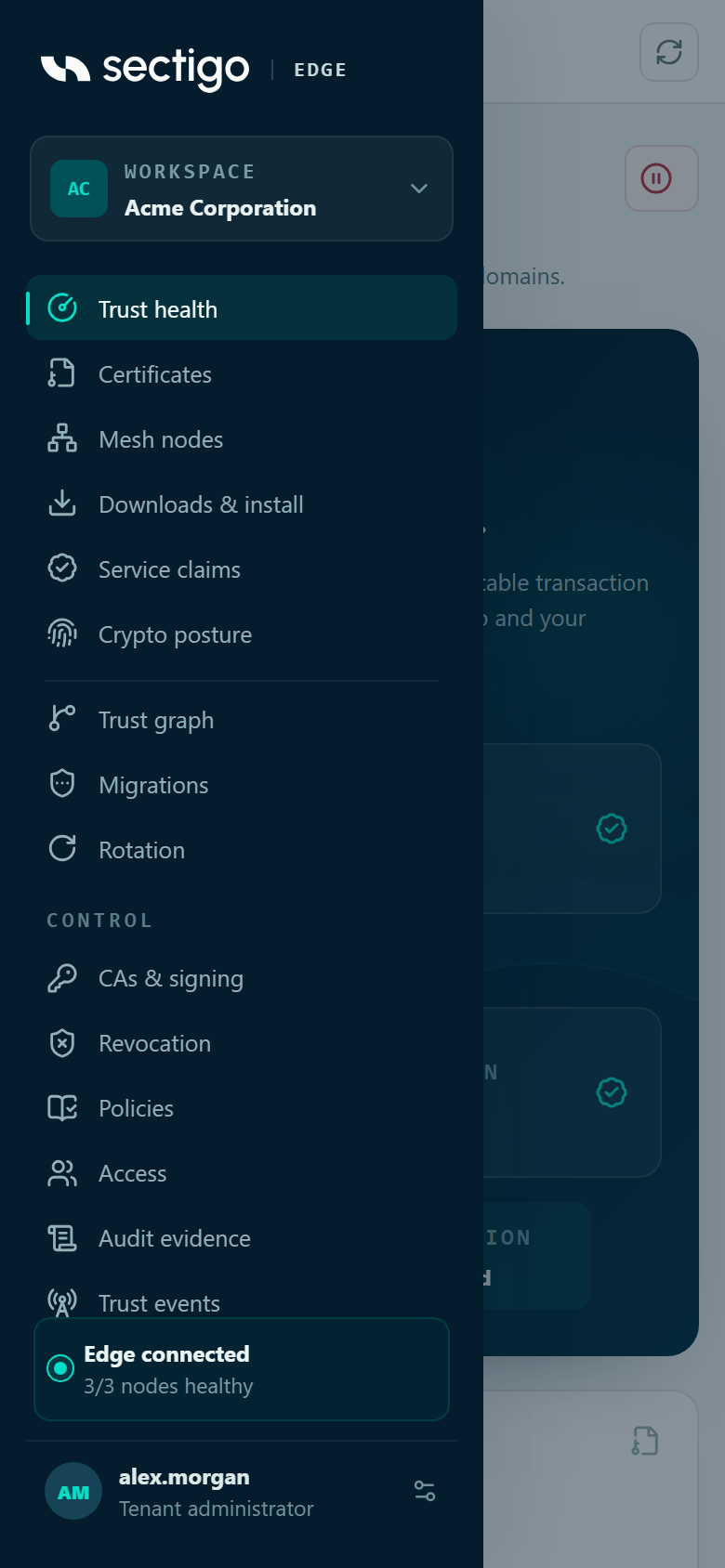
The left navigation lists the screens in three blocks. The first block has no heading; the other two are labelled Control and Operate:
| Block | Screens |
|---|---|
| (no heading) | Trust health, Certificates, Mesh nodes, Downloads & install, Service claims, Crypto posture, Trust graph, Migrations, Rotation |
| Control | CAs & signing, Revocation, Policies, Access, Audit evidence, Trust events |
| Operate | Integrations, Incidents |
The demo workspace adds an End-to-end demo item under Guided tour.
The bottom of the sidebar shows your edge connection state and your profile button. The top bar shows the current screen, an overall status pill and a Refresh button that reloads all console data.
Status indicators you see on every screen
| Where | Text | Meaning |
|---|---|---|
| Top bar | trust path healthy | Issuance is not paused, at least one Mesh Node is enrolled, every node reports healthy, and overall trust status is healthy. |
| Top bar | issuance paused | The issuance kill switch is active. See Incidents & break-glass. |
| Top bar | No Mesh Nodes connected | No Mesh Node is enrolled, so the customer trust domain cannot approve issuance. See Mesh nodes. |
| Top bar | Degraded · x/y nodes healthy | Some enrolled nodes are not healthy. |
| Top bar | Degraded | All nodes are healthy but the workspace reports a degraded trust status. |
| Sidebar | No Mesh Nodes yet / Enroll a node to connect your edge | No node is enrolled. |
| Sidebar | Edge connected / x/y nodes healthy | Every enrolled node is healthy. |
| Sidebar | Edge degraded / x/y nodes healthy | At least one node is not healthy. |
| Sidebar, Incidents item | A red dot | Issuance is paused, or a resume request is waiting for approval. |
Privileged actions
Most changes in the console are privileged. Before you start, know these rules:
- Fresh MFA. Privileged actions need a session where you completed MFA within the last ten minutes. If yours is older, the action is rejected and you need to sign in again.
- Two people. Activating a policy, approving a migration plan, closing a migration recovery and resuming issuance after a pause each need a second, different person. The console disables the approve button for the person who made the request.
- Typed confirmations. Publishing a CRL, refreshing OCSP responses and the break-glass controls ask you to type an exact phrase, such as
REFRESH CRL. - Roles. What you can do depends on your product role. See Access & roles for the full permission table.
In this section
Overview & trust health
The Trust health screen: overall trust status, the dual-control trust diagram, key metrics, post-quantum readiness, audit integrity, recent activity and the latest issuance path.
Certificates
Browsing, filtering and inspecting certificates under management, viewing their status and history, and the actions you can take on an individual certificate.
Mesh nodes
The Mesh nodes screen: node health and versions, the approval quorum, and creating a one-time enrollment package for a new node.
Downloads & install
Where to download Mesh Node packages and the CLI for each platform, how to verify downloads, and how the console generates install commands for you.
Service claims
Reviewing services and agents announced by Mesh Nodes, verifying the human code they display, and claiming them so they receive workload identities.
Crypto posture
The cryptographic posture view: how much of your estate is ready for post-quantum signatures and hybrid key exchange, based on fresh endpoint evidence.
Trust graph
The trust dependency graph: which services call which, how that evidence was collected, and the blast radius of changing a certificate, key or policy for one service.
Migrations
Planning, approving and running dependency-ordered certificate migrations with canary waves, sustained health checks, automatic rollback and independent recovery approval.
Rotation
Zero-downtime rotation: reviewing active and standby certificate slots and promoting a verified standby certificate with a health check.
CAs & signing
Connecting a signing authority (Sectigo SCM or your own issuing CA), setting SCM enrollment IDs, managing and replacing connectors, and checking CRL publication per CA.
Revocation
Revocation distribution: OCSP response and CRL health per signing authority, refreshing OCSP responses and publishing a new CRL.
Policies
Viewing the effective policy stack, configuring the next policy version and its workload profiles, assessing estate impact, and activating a proposal with a second person's approval.
Access & roles
Assigning product roles to users and groups, what each role can do, the SCIM provisioning connector, and how your identity is shown for password and enterprise SSO accounts.
Audit evidence
The audit evidence screen: the hash-chained event record, what the verification labels mean, customer witness checkpoints, and exporting a portable proof for auditors.
Trust events
Signed, low-authority trust events that SDKs and the CLI can subscribe to, which audit events become events, and how subscribers verify them.
Integrations
Integration cards and their statuses, configuring desired state (enablement, target nodes, profile, adapter reference), and testing an integration.
Incidents & break-glass
The issuance kill switch, guarded two-person resume, issuance guardrail findings, and the break-glass policy shown on the Incidents screen.
Profile & account security
The Account & session dialog: your signed-in identity, authentication and MFA method, adding and revoking passkeys, and how sessions end.