Access & roles
The Access screen (page heading Users & access) is where Tenant Admins give people and groups their product roles and connect an identity provider for SCIM provisioning.
ConsoleAccessWhat it's for
- Grant or remove a product role for a user or group.
- See every current role assignment.
- Create, rotate or revoke the SCIM token your identity provider uses to provision users and groups.
- Check how you signed in and how your workspace is provisioned.
Signing in does not grant a role. Every action is checked against your role and the specific resource: the tenant, CA, profile, node, certificate set, policy or audit stream.
What you see
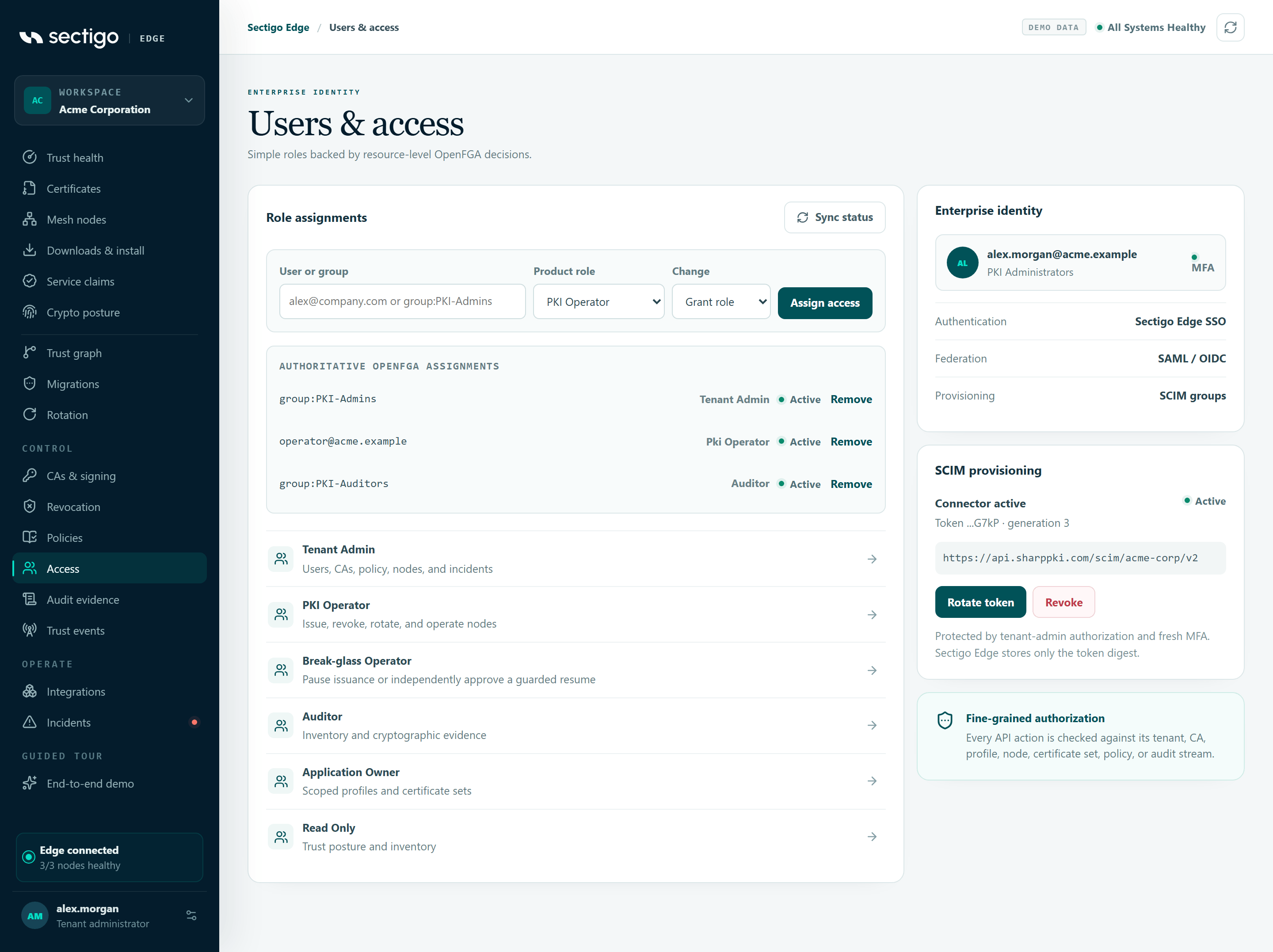
The left card, Role assignments, holds the assignment form, the list of current assignments and the role list. On the right are Enterprise identity, SCIM provisioning and a note on fine-grained authorization.
Roles
| Role | Console description | What it can do |
|---|---|---|
| Tenant Admin | Users, CAs, policy, nodes, and incidents | Everything below, plus manage users and roles, connect and manage CAs, and the SCIM connector. |
| PKI Operator | Issue, revoke, rotate, and operate nodes | View; enroll nodes, claim services and configure node integrations; propose and approve policy and migrations; issue, revoke and rotate; publish CRLs and refresh OCSP; view audit evidence. |
| Break-glass Operator | Pause issuance or independently approve a guarded resume | View; view audit evidence; pause issuance, request a resume and approve another person's resume request. Nothing else. |
| Auditor | Inventory and cryptographic evidence | View; view audit evidence and export proofs. |
| Application Owner | Scoped profiles and certificate sets | View; issue certificates and rotate certificate sets. |
| Read Only | Trust posture and inventory | View only. |
Permission summary
| Action | Tenant Admin | PKI Operator | Break-glass Operator | Auditor | Application Owner | Read Only |
|---|---|---|---|---|---|---|
| View workspace | Yes | Yes | Yes | Yes | Yes | Yes |
| View audit evidence | Yes | Yes | Yes | Yes | — | — |
| Issue / rotate | Yes | Yes | — | — | Yes | — |
| Revoke, CRL, OCSP | Yes | Yes | — | — | — | — |
| Nodes, service claims, node integrations | Yes | Yes | — | — | — | — |
| Policy and migrations | Yes | Yes | — | — | — | — |
| Pause / resume issuance | Yes | — | Yes | — | — | — |
| CAs and the Sectigo SCM integration | Yes | — | — | — | — | — |
| Users, roles and SCIM | Yes | — | — | — | — | — |
Every change requires MFA within the last ten minutes. Activating a policy, approving a migration or recovery and approving an issuance resume also require a second, different person. The second person is identified by their immutable identity, not their email address. Assign each sensitive role to at least two separately controlled people or groups.
Assign a role
- In User or group, enter a provisioned user's email, for example
alex@company.com, or a group asgroup:followed by its name, for examplegroup:PKI-Admins. - Choose the Product role.
- Leave Change as Grant role.
- Select Assign access.
The console shows Access assignment saved. and the list below refreshes.
You can also select the arrow next to a role in the role list. That selects the role in the form and shows Role selected. Enter a provisioned user or group above.
When SCIM provisioning is required, the email you type is resolved through your SCIM directory to the user's immutable identity. The user must already be provisioned and active. Group roles use the group's display name from SCIM.
Remove a role
Either:
- Select Remove next to the assignment and confirm Remove role from subject?, or
- In the form, choose Remove role under Change, enter the user or group and role, and select Remove access.
The console shows Access assignment removed.
Current assignments
AUTHORITATIVE OPENFGA ASSIGNMENTS lists every direct role assignment for users and groups in your workspace:
| Column | Content |
|---|---|
| Subject | The user's email or group: name. |
| Role | The product role. |
| Status | active, or deprovisioned when the user was disabled in your identity provider. A deprovisioned user stays listed so you can clean up, but cannot sign in or act. |
| Remove | Available for active assignments whose subject is an email address or a group: name. |
Select Load more if more assignments exist. If there are none, the list shows No direct user or group role is assigned.
Enterprise identity
Shows your own email, your first group (or Direct assignment), and MFA or MFA missing. Three rows describe how you signed in:
| Row | Password account | Enterprise SSO |
|---|---|---|
| Authentication | Sectigo Edge account (password + MFA) | Enterprise SSO |
| Federation | Not federated | Federated through your identity provider |
| Provisioning | Depends on the SCIM connector (below) | Depends on the SCIM connector (below) |
Provisioning reads SCIM connector active (with the number of provisioned users when known), SCIM token revoked, or Direct role assignments (SCIM not configured).
SCIM provisioning
The SCIM connector lets your identity provider create, update and deactivate users and groups in Sectigo Edge. Disabling a user in your identity provider immediately stops their console access.
| Connector state | Card shows |
|---|---|
| Not set up | Not configured · Create a tenant-bound token for your identity provider. · status setup |
| Active | Connector active · Token hint and generation · status active |
| Revoked | Token revoked · status setup |
The card shows the SCIM base URL for your workspace (in the form https://…/scim/<tenant-id>/v2). Configure your identity provider with this URL and the bearer token.
Create or rotate the SCIM token
- Select Create token (or Rotate token if a connector is active).
- If rotating, confirm Rotate the current SCIM token? The existing token will stop working immediately.
- Copy the ONE-TIME BEARER TOKEN with the copy button.
- Paste the base URL and token into your identity provider's SCIM settings.
Copy this token now. It cannot be retrieved later. Sectigo Edge stores only a digest of the token. If you lose it, rotate it.
Revoke the SCIM token
Select Revoke and confirm Revoke the current SCIM token immediately? Provisioning will stop until a new token is created. The console confirms SCIM connector token revoked.
Check sync status
SCIM is push-based: your identity provider sends changes. Select Sync status to reload the connector and assignment list. The message shows one of:
| Message | Meaning |
|---|---|
| Connector active · last provisioning call … ago. | Your identity provider has called recently. |
| Connector active · no provisioning call received yet. | The token exists but your identity provider has not used it. |
| Connector token is revoked. Provisioning is stopped. | The token was revoked. |
| No SCIM connector is configured. Roles are assigned directly. | No token was ever created. |
Permissions
Only Tenant Admin can view assignments, change roles and manage the SCIM connector. Every change requires MFA within the last ten minutes.
See also First login and MFA for signing in, and Profile & account security for your own passkeys.
Troubleshooting
| Symptom | Cause and fix |
|---|---|
| User is not active in SCIM provisioning (or a similar message) when assigning | The email is not a provisioned, active user. Provision the user from your identity provider first. |
| Remove is greyed out | The assignment is deprovisioned, or its subject is not an email or group: name. |
| An error appears in place of the assignment list | Your role cannot manage users. Only Tenant Admins see assignments. |
Your identity provider gets 401 | The token was rotated or revoked, or the identity provider is using a different workspace's URL. Create a new token and update both values. |
| A user with only Read Only or Application Owner sees Console unavailable | In the current release the console loads audit events on every screen, and these two roles do not include audit visibility. Assign an additional role that includes audit visibility (for example Auditor) if the user needs console access. |