First login & MFA
Every Sectigo Edge password account uses multi-factor authentication (MFA). Your first sign-in after workspace approval enrols an authenticator app. After that you can add passkeys for faster, phishing-resistant sign-in.
What you need
- Your approved account: the work email and password you chose at sign-up.
- An authenticator app that supports time-based one-time codes (TOTP), such as Microsoft Authenticator, Google Authenticator, 1Password or a similar app.
- Optional: a device or security key that supports passkeys (for example Windows Hello, Touch ID, a phone passkey provider, or a FIDO2 security key).
Sign in
- Open the sign-in page. Under Choose how to sign in, keep Email & password selected.
- Enter your Work email (your username) and Password.
- Select Sign in with email & password.
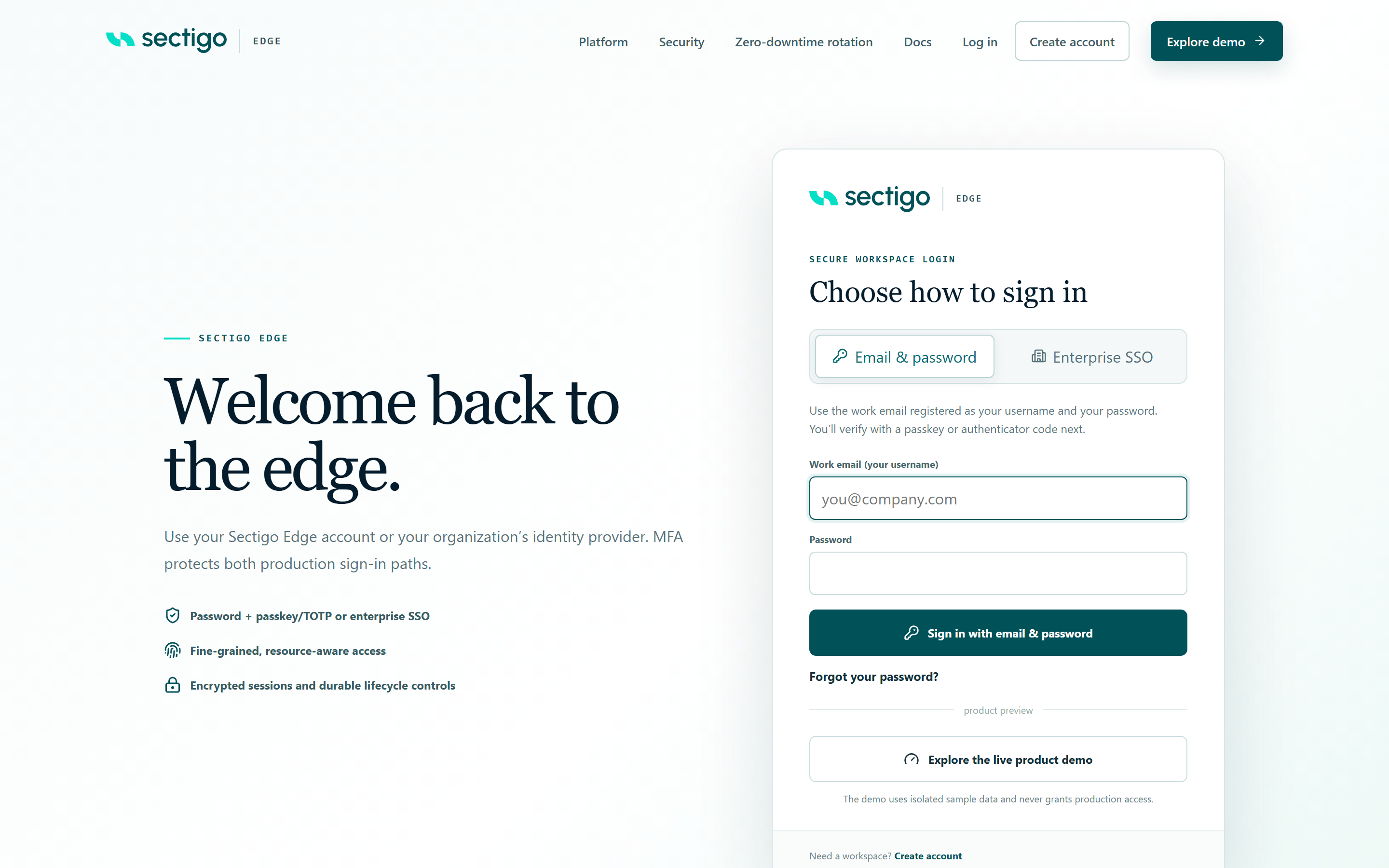
If your organisation has connected its identity provider, choose the Enterprise SSO tab and select Continue to SSO instead. If SSO is not connected yet, the tab says so and points you back to your Sectigo Edge account.
First sign-in: set up your authenticator app
After your password is accepted for the first time, the page shows Secure your account with MFA.
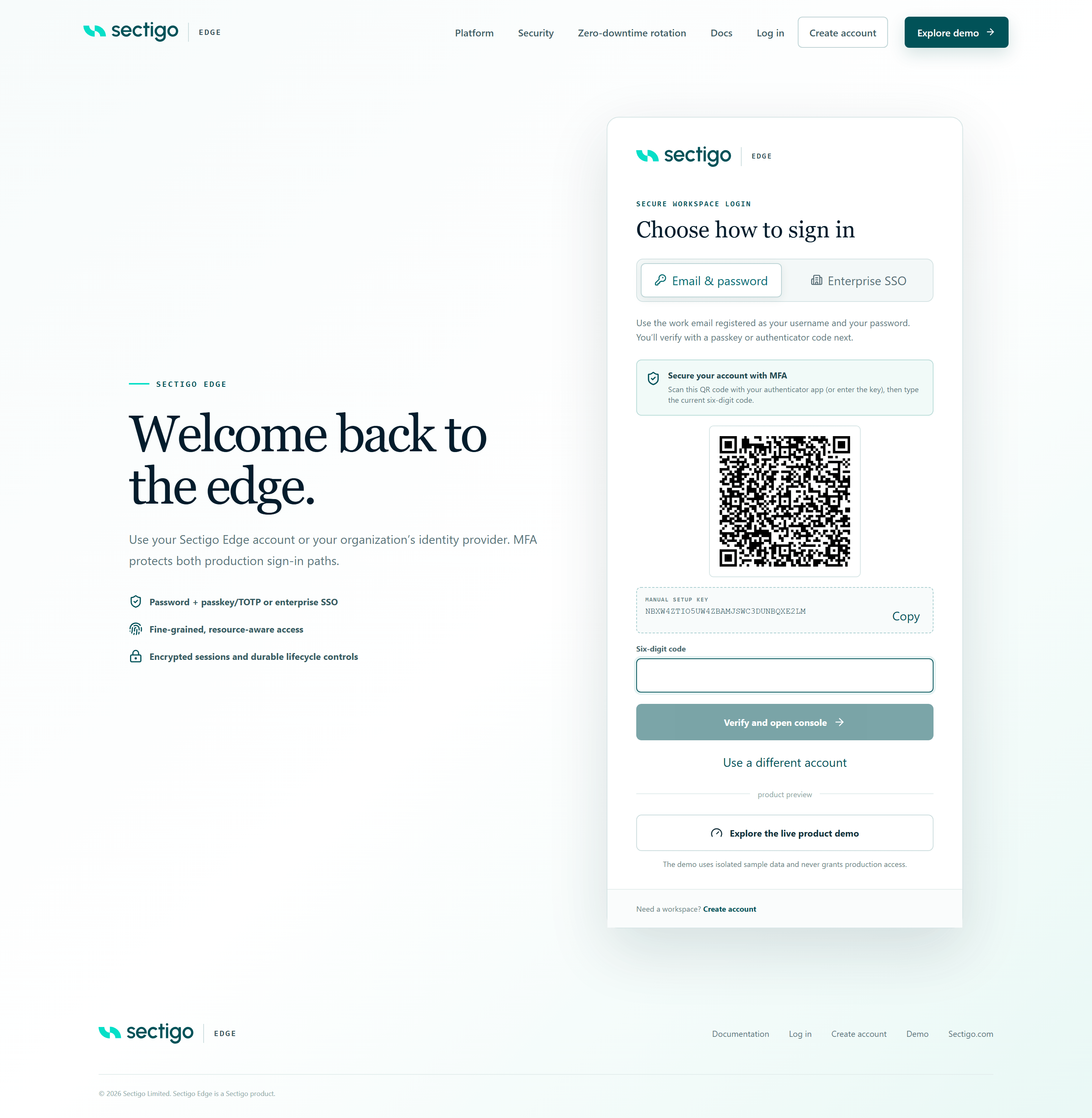
- Open your authenticator app and add a new account.
- Scan the QR code. If you cannot scan it, choose manual entry in the app and paste the MANUAL SETUP KEY (use Copy). The settings are shown in the table below.
- The app shows a six-digit code that changes every 30 seconds. Type the current code into Six-digit code.
- Select Verify and open console.
| Authenticator setting | Value |
|---|---|
| Account / issuer | Sectigo Edge, followed by your work email |
| Type | Time-based (TOTP) |
| Digits | 6 |
| Period | 30 seconds |
| Algorithm | SHA-1 (the default in most apps) |
The setup key is shown only during this step. If you close the page before verifying a code, sign in again: you get a new QR code and key. Delete the unfinished entry from your authenticator app so you do not end up with two.
Add a passkey (optional, recommended)
After your authenticator code is accepted, the page offers Add phishing-resistant MFA.
- Select Add a passkey and follow your browser or device prompt. You can save the passkey to the device, to a security key, or to your passkey provider.
- Or select Continue without a passkey. You will be offered this again after each sign-in with an authenticator code until you add a passkey.
Your authenticator app remains available as a recovery factor after you add a passkey.
When passkey setup succeeds you go straight to the console. If you cancel the browser prompt, you see Passkey enrollment was cancelled or timed out. You can continue and add one later.
Signing in after the first time
After your password, the page shows Enter your authenticator code:
- If you have a passkey, select Use a passkey and confirm with your device.
- Otherwise, or if you prefer, enter the Six-digit code from your authenticator app and select Verify and open console.
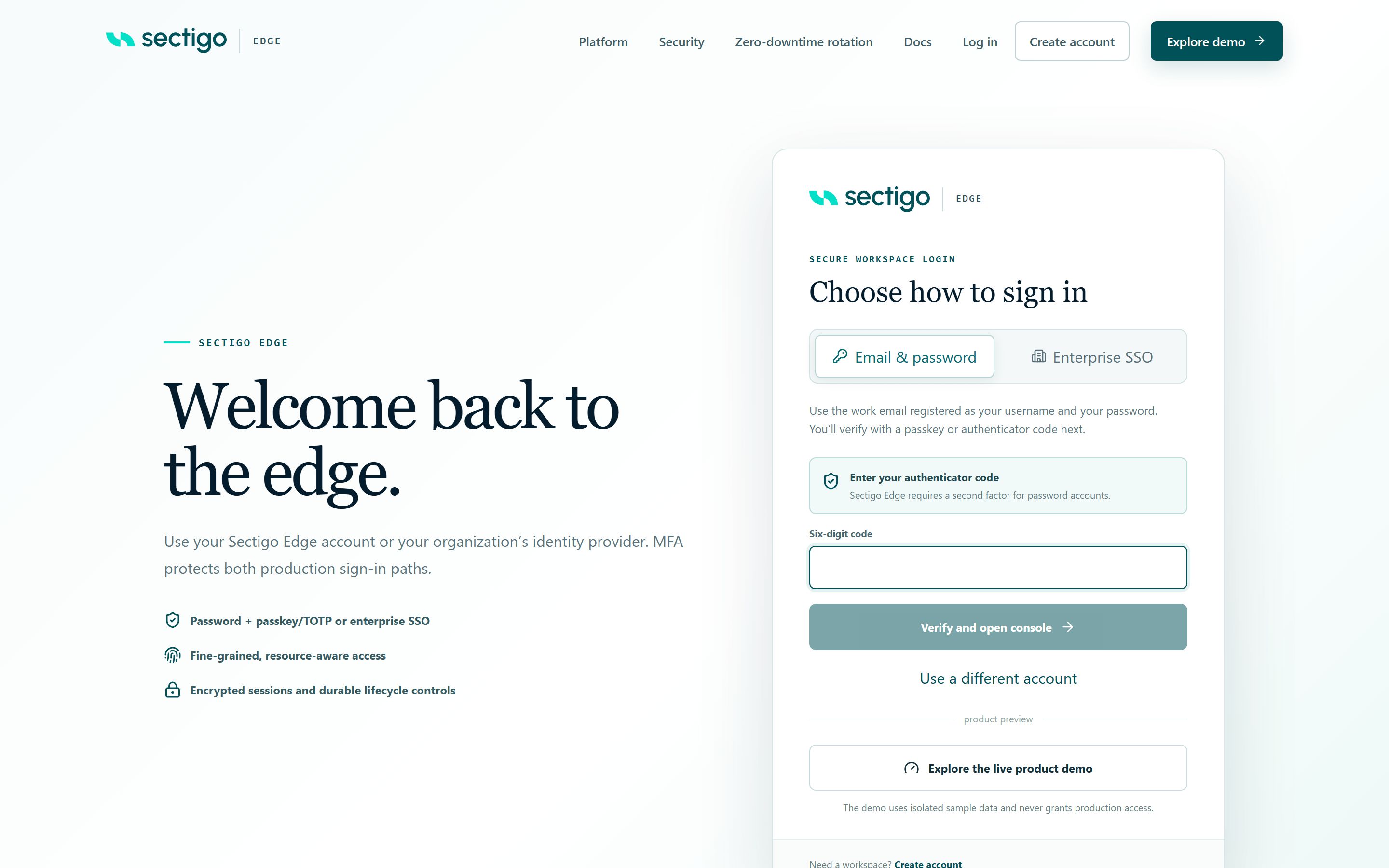
To start over with a different email, select Use a different account.
A signed-in session lasts up to eight hours. After that, sign in again.
Manage your passkeys
You can add or revoke passkeys at any time from the console.
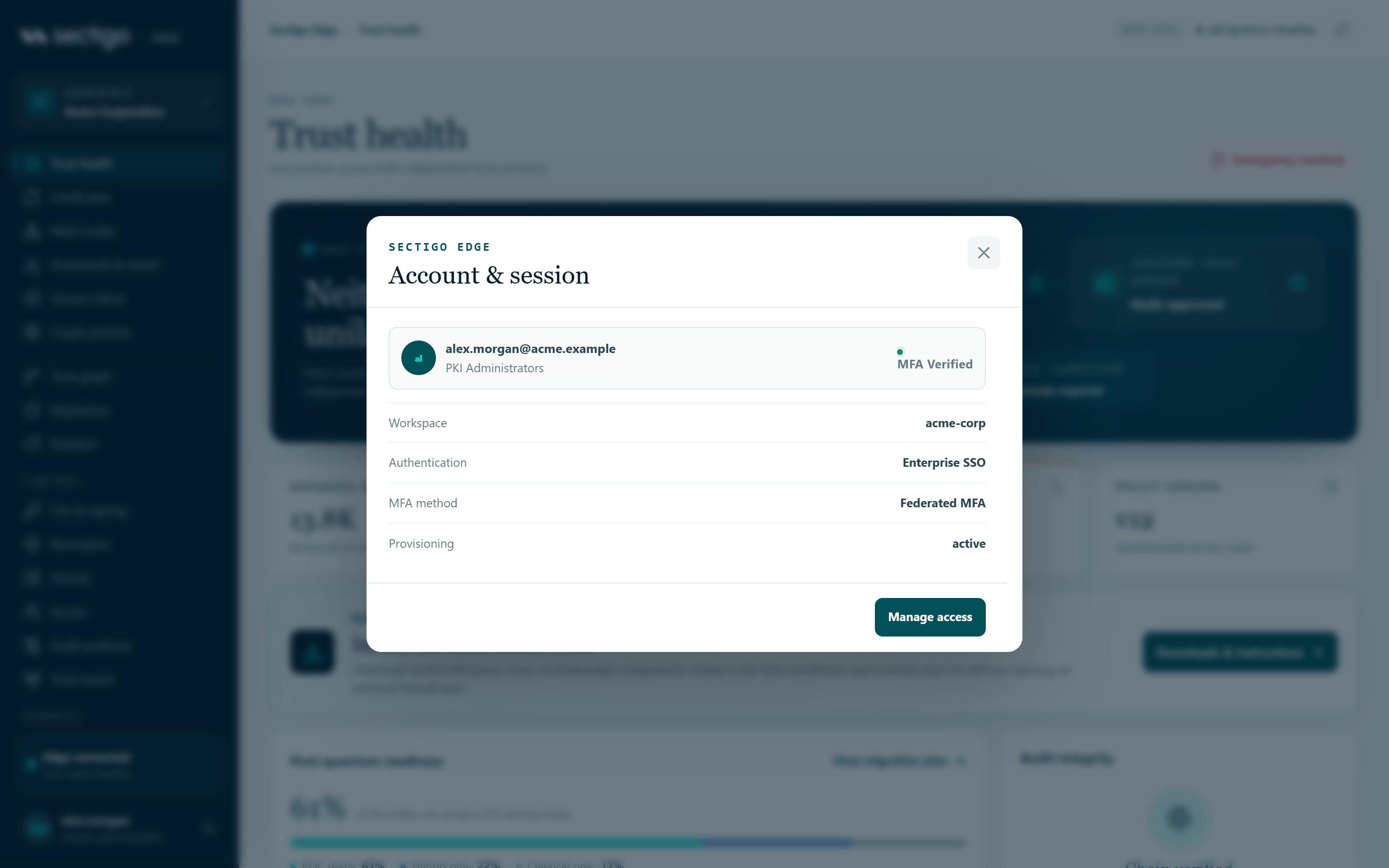
- Select your name at the bottom of the console sidebar to open Account & session.
- In the Passkeys section, select Add passkey and follow the browser prompt.
- To remove one, select Revoke next to it and confirm.
| Rule | Detail |
|---|---|
| Maximum passkeys | 10 per account. |
| Recent sign-in required | Adding or revoking a passkey requires that you signed in with MFA within the last ten minutes. If not, open the sign-in page and sign in again first; the new sign-in replaces your session. |
| Revoking signs you out | Revoking a passkey ends every active session for your account, and you return to the sign-in page. |
| Last passkey | If your organisation requires phishing-resistant MFA, you cannot revoke your last passkey until you add another. |
The dialog shows each passkey as Passkey … followed by a short identifier, with when it was added and last used. sync-capable marks a passkey that your provider can sync between devices.
More detail on this dialog is in Profile & security.
Forgot your password?
- On the sign-in page, select Forgot your password?
- Enter your Work email and select Send reset link.
- Open the email with subject Reset your Sectigo Edge password and select Choose a new password. The link is single-use and expires after 15 minutes.
- Enter a New password, repeat it in Confirm new password, and select Change password.
- Select Return to login and sign in with the new password and your existing MFA.
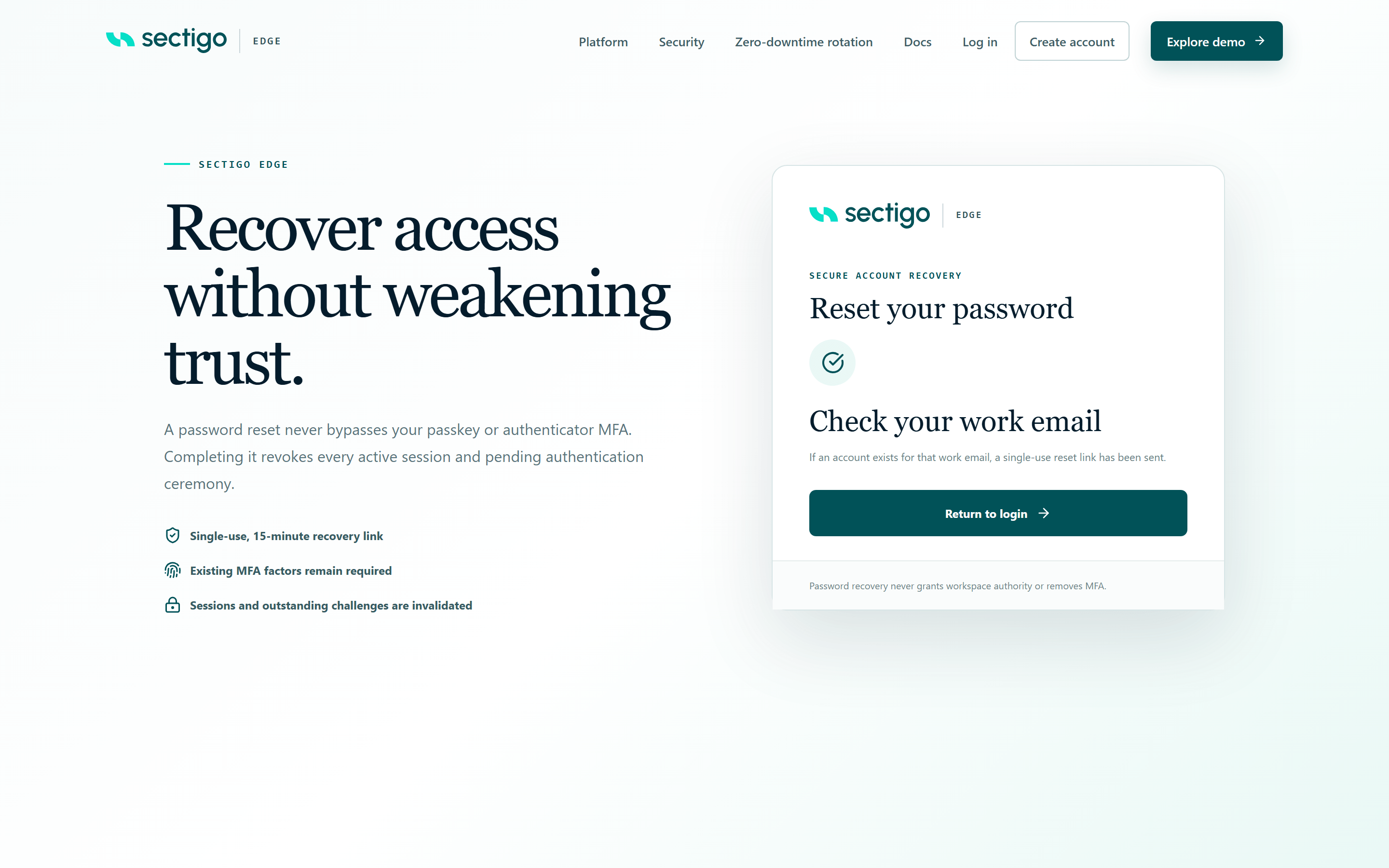
What a reset does:
- Signs out every session and cancels any sign-in that was in progress.
- Keeps your MFA. Your authenticator app and passkeys still work and are still required. A reset never removes or bypasses MFA.
- Sends a notice (subject Your Sectigo Edge password was changed). If you did not make the change, contact your security administrator immediately.
- Requesting a new link cancels any earlier reset link.
The new password follows the same rules as at sign-up, and cannot be your current password or any of your five previous passwords.
Lost your authenticator?
- If you have a passkey, sign in with Use a passkey. Note that authenticator-app enrolment happens only once, at first sign-in; the console has no option to re-enrol a replacement authenticator app.
- If you still have your authenticator on another device (for example a synced authenticator app), use that.
- If you have lost every factor, you cannot sign in on your own: password recovery deliberately does not reset MFA. Contact Sectigo support for help.
Adding at least one passkey, ideally on a second device or a security key, gives you a backup if you lose your phone.
Troubleshooting
| Message | Cause | What to do |
|---|---|---|
| Your credentials are valid. Complete email and domain verification, then wait for workspace approval. | Your password is correct but the workspace is not approved yet. | See Workspace approval. |
| Email or password is incorrect | Wrong email or password. | Check both. Use Forgot your password? if needed. |
| This account is temporarily locked. Try again later | 10 consecutive failed password attempts. | Wait 15 minutes, then sign in with the correct password, or reset your password (a reset clears the lock). |
| Too many sign-in attempts. Try again later | Too many attempts for this email within 15 minutes, or from your network. | Wait 15 minutes. |
| The authenticator code is invalid | Wrong code, or your device clock is off. | Enter the current code. Make sure your phone's time is set automatically. |
| This authenticator code was already used. Wait for the next code | Each code can be used only once. | Wait for the app to show a new code. |
| The MFA challenge is invalid or expired | More than five minutes passed since you entered your password. | Select Use a different account and sign in again. |
| Too many authenticator attempts. Sign in again | Five wrong codes for this sign-in. | Sign in again from the start. |
| Passkey verification was cancelled or timed out. | The browser prompt was dismissed or not completed in time. | Try Use a passkey again, or use an authenticator code. |
| The passkey is not recognized for this account | The passkey belongs to another account or was revoked. | Choose the right passkey, or use an authenticator code. |
| Account security changes require an MFA session issued within the last ten minutes | You tried to add or revoke a passkey more than ten minutes after signing in. | Open the sign-in page, sign in again, then retry. |
| This account already has the maximum of ten active passkeys | The passkey limit is reached. | Revoke one you no longer use first. |
| Too many recovery requests. Try again later | More than 5 reset requests for this email, or 20 from your network, within an hour. | Wait an hour. |
| The password reset link is invalid or expired | The link is older than 15 minutes, was already used, or a newer link was requested. | Request a new link and use only the latest email. |
| Too many reset attempts. Request a new link | Too many attempts with the same link. | Request a new link. |
| Choose a password that has not been used recently | The new password matches your current or one of your five previous passwords. | Choose a different password. |