Profile & account security
The Account & session dialog shows who you are signed in as and how. If you use a Sectigo Edge password account, it is also where you add and revoke passkeys.
ConsoleProfile button (bottom of the sidebar)Open your profile
Select the profile button at the bottom of the sidebar. It shows your initials, your name (derived from your email) and your first group, if you have one. The Account & session dialog opens.
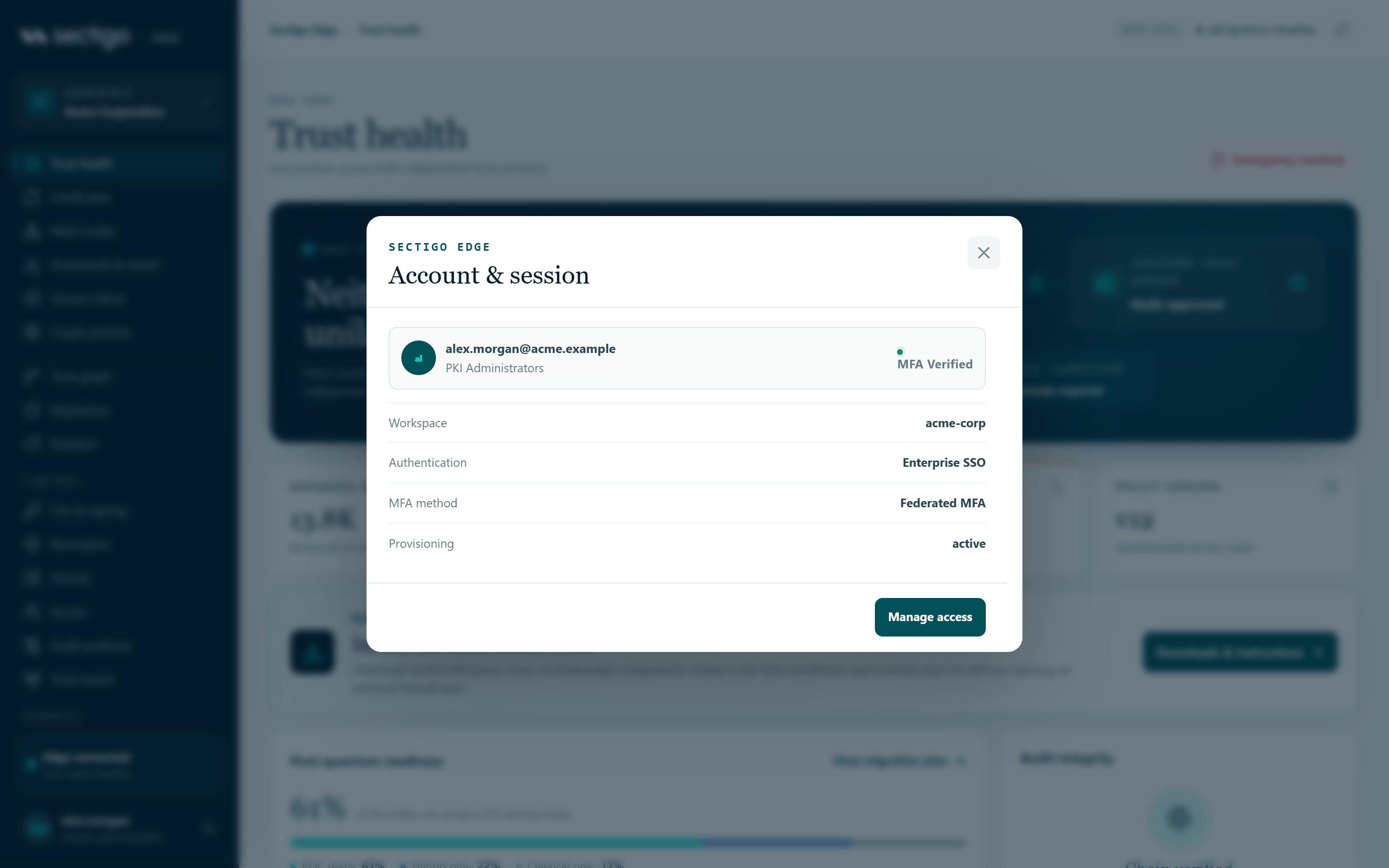
What you see
The top line shows your email, your groups (or Direct assignment if you have none) and your MFA state: MFA verified or MFA required.
| Field | Values |
|---|---|
| Workspace | Your workspace (tenant) ID. |
| Authentication | Sectigo Edge account (email and password) or Enterprise SSO. |
| MFA method | Passkey · phishing-resistant, Authenticator code or Federated MFA (MFA performed by your identity provider). |
| Provisioning | The SCIM connector status: active, revoked, not_configured, or not configured. |
Manage access closes the dialog and opens Access & roles.
Passkeys
The Passkeys section appears only for Sectigo Edge (password) accounts. Enterprise SSO users manage their MFA with their identity provider.
A passkey is a phishing-resistant factor stored on your device or in your password manager. After you add one, you can sign in with the passkey or with your authenticator code. Authenticator-code MFA stays available as a fallback.
Add a passkey
- Open the profile dialog.
- Under Passkeys, select Add passkey.
- Follow your browser's or device's prompt to create the passkey.
- The console confirms Passkey enrolled. It is available on your next sign-in. and the passkey appears in the list.
Each passkey is listed as Passkey …abcd (the end of its credential ID), with the date added, when it was last used (or not used yet), and sync-capable if it can sync between your devices.
You can have up to ten passkeys. Add passkey is disabled when you reach ten or when your browser does not support passkeys.
Revoke a passkey
- Select Revoke next to the passkey.
- Confirm Revoke passkey …abcd? Every account session will be signed out.
- You are signed out and returned to the sign-in page.
Revoking a passkey invalidates every active session for your account, on all devices. When phishing-resistant MFA is mandatory for your workspace, you cannot remove your final passkey, and the revocation must be made from a session where you signed in with a passkey.
Fresh MFA for account security changes
Adding or revoking a passkey requires a session where you completed MFA within the last ten minutes. If yours is older, the action fails with Account security changes require an MFA session issued within the last ten minutes. Sign in again, completing MFA, then retry.
Signing out
The console does not currently have a sign-out button. Sessions for Sectigo Edge password accounts last up to eight hours after MFA. Revoking a passkey signs out every session for your account. Enterprise SSO sessions are controlled by your organization's identity provider policy.
On shared computers, close the browser when you finish.
Permissions
Every signed-in user can open their own profile and manage their own passkeys. No product role is needed.
Troubleshooting
| Message | Cause and fix |
|---|---|
| This browser does not support passkeys. | Use a browser and device that support WebAuthn passkeys. |
| Passkey enrollment was cancelled or timed out. | The device prompt was dismissed or took too long. Try again. |
| Passkeys could not be loaded. | The list could not be fetched. Close and reopen the dialog. |
| Add passkey is greyed out | You already have ten passkeys, your browser does not support passkeys, or an update is in progress. |
| The Passkeys section is missing | You signed in with Enterprise SSO. Passkeys for SSO users are managed by your identity provider. |
| No passkeys enrolled. Authenticator-code MFA remains active. | You have not added a passkey yet. You can keep using your authenticator app. |
See First login and MFA for setting up your authenticator app.