Rotation
The Rotation screen (page heading Zero-downtime rotation) shows each certificate set's two slots and lets you promote a staged replacement into service only after the Mesh Node proves it is healthy.
ConsoleRotationWhat it's for
Most managed identities are certificate sets with two slots:
- ACTIVE: the certificate currently serving traffic.
- STANDBY: a replacement that has been issued and deployed (staged) but is not yet serving.
Promotion swaps them. The old certificate keeps serving until the standby passes its health check, so a failed rotation never causes an outage.
What you see
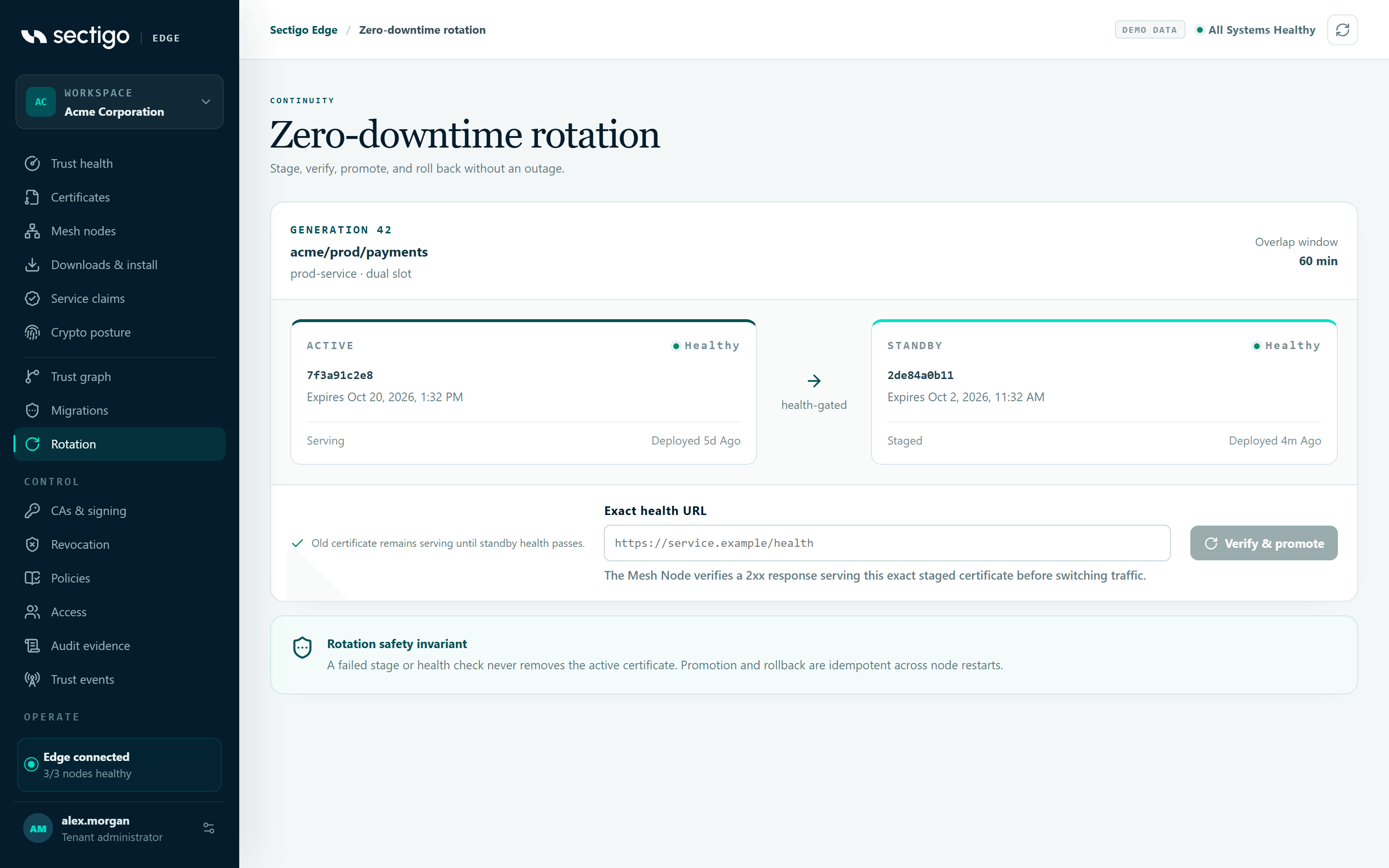
Each certificate set is a card:
| Part | Content |
|---|---|
| GENERATION n | How many times the set has been issued. |
| Title | The endpoint identity. |
| Subtitle | Profile ID and rotation mode (dual slot or in place). |
| Overlap window | How long the old and new certificates overlap, in minutes. While a promotion is in progress this reads Node command · pending verification. |
| ACTIVE / STANDBY slots | Each slot shows its health, serial number, expiry, state and Deployed … ago or Not deployed. An unused slot shows Empty slot. |
| Exact health URL | Only shown when a standby exists. |
| Verify & promote | Starts the promotion. Reads Awaiting Mesh Node while a promotion is in progress. |
Slot health is healthy, unhealthy or unknown. Slot state is staged, serving, draining, retired or revoked.
At the bottom, the Rotation safety invariant card reminds you: A failed stage or health check never removes the active certificate. Promotion and rollback are idempotent across node restarts.
If no certificate has been issued yet, the screen shows No certificate sets yet: Dual-slot state appears after the first managed identity is issued.
Promote a standby certificate
- Find the certificate set. Check that the STANDBY slot shows a certificate in state
staged. - Check the Exact health URL. The console pre-fills it from the first non-wildcard name on the staged certificate, as
https://<name>/health. Change it if your service exposes health elsewhere. - Select Verify & promote.
- Wait for the Mesh Node to report back. The button reads Awaiting Mesh Node until it does. Select Refresh in the top bar to update the card.
The console confirms: Promotion command queued. The assigned Mesh Node will verify the exact certificate and report completion.
The Mesh Node verifies a 2xx response from the health URL while serving this exact staged certificate before switching traffic. After promotion, the previous certificate moves to the standby slot as draining.
Health URL rules
- It must start with
https://. Verify & promote stays disabled otherwise. - It must return a 2xx response while the staged certificate is being served.
- It is fixed while a promotion is in progress.
Where rotation settings come from
The renewal timing, overlap, health grace period, rollback window and whether promotion is manual or automatic come from the workload profile in your policy. Configure them in Policies under Workload and application profiles:
| Setting | Values |
|---|---|
| Promotion | Operator verifies & promotes, or Automatic after exact health (only for profiles that allow NGINX, Apache, Java keystore or HashiCorp Vault deployment) |
| Renew before (hours) | When to start renewing before expiry |
| Overlap (minutes) | 0–10,080 |
| Health grace (seconds) | 10–3,600 |
| Rollback window (minutes) | 1–1,440 |
To promote many certificate sets in coordinated waves, use Migrations. See also Zero-downtime rotation.
Permissions
| Action | Roles |
|---|---|
| View certificate sets | Every role |
| Verify & promote | Application Owner, PKI Operator, Tenant Admin. Requires MFA within the last ten minutes. |
Troubleshooting
| Symptom | Cause and fix |
|---|---|
| Verify & promote is greyed out | There is no standby, a promotion is already pending, or the health URL does not start with https://. |
| The card stays on Awaiting Mesh Node | The node has not reported completion. Check the node on Mesh nodes and the deployment integration on Integrations. |
| Promotion did not happen and the old certificate is still active | The health check failed, so the node kept the active certificate. Fix the service or the health URL, then promote again. |
| The promotion is rejected with an MFA message | Your MFA is older than ten minutes. Sign in again. |