Service claims
When a new service, SDK, CLI or MCP runtime starts next to a Mesh Node, it can announce itself and ask for a workload identity. The node verifies that the runtime holds a fresh key, but that is only an introduction. A person must still verify and claim it on the Service claims screen before it receives an identity.
ConsoleService claimsWhat it's for
- Review runtimes that Mesh Nodes have discovered and measured.
- Confirm a runtime is the one you expect by comparing a short code it displays.
- Claim it: assign an owner, an identity profile and the channels it may use.
The local node verified fresh key possession. Compare the code shown by the service, then approve only its node-derived workload selectors.
What you see
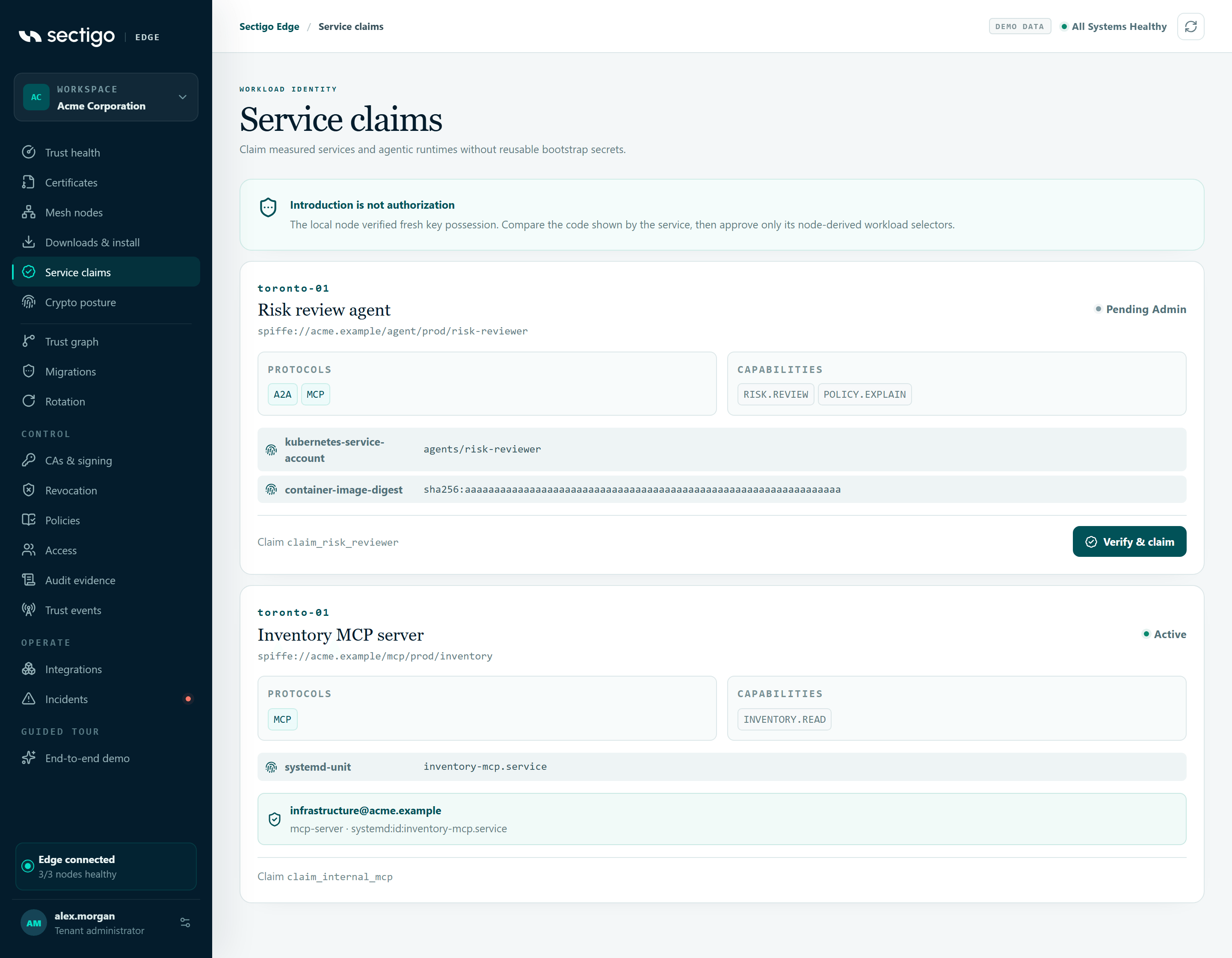
Each claim is a card:
| Part | Content |
|---|---|
| Eyebrow | The site hint the runtime reported, or the ID of the node that discovered it. |
| Title | The runtime's display name, for example Risk review agent. |
| Under the title | The SPIFFE ID the runtime is requesting. |
| Status | pending admin, approved or active. |
| PROTOCOLS | Channels the runtime wants to use. |
| CAPABILITIES | Capabilities the runtime reported. |
| Measurements | What the node measured about the runtime, for example a Kubernetes service account. Long values are shortened. |
| Approval box | After approval: the owner, the identity profile and the workload selectors derived by the node. |
| Footer | Claim with the claim ID, and Verify & claim while the claim is pending. |
Claim statuses
| Status | Meaning |
|---|---|
pending admin | Waiting for a person to verify and claim it. |
approved | You claimed it. The node is verifying the signed grant and creating the workload registration. |
active | The registration is in place and the runtime can obtain its identity. |
If nothing is waiting, the screen shows No service claims: New SDK, CLI, and MCP runtimes appear here after local proof of possession.
Verify and claim a service
Before you start, get the eight-character verification code from the person running the service. The service displays it locally.
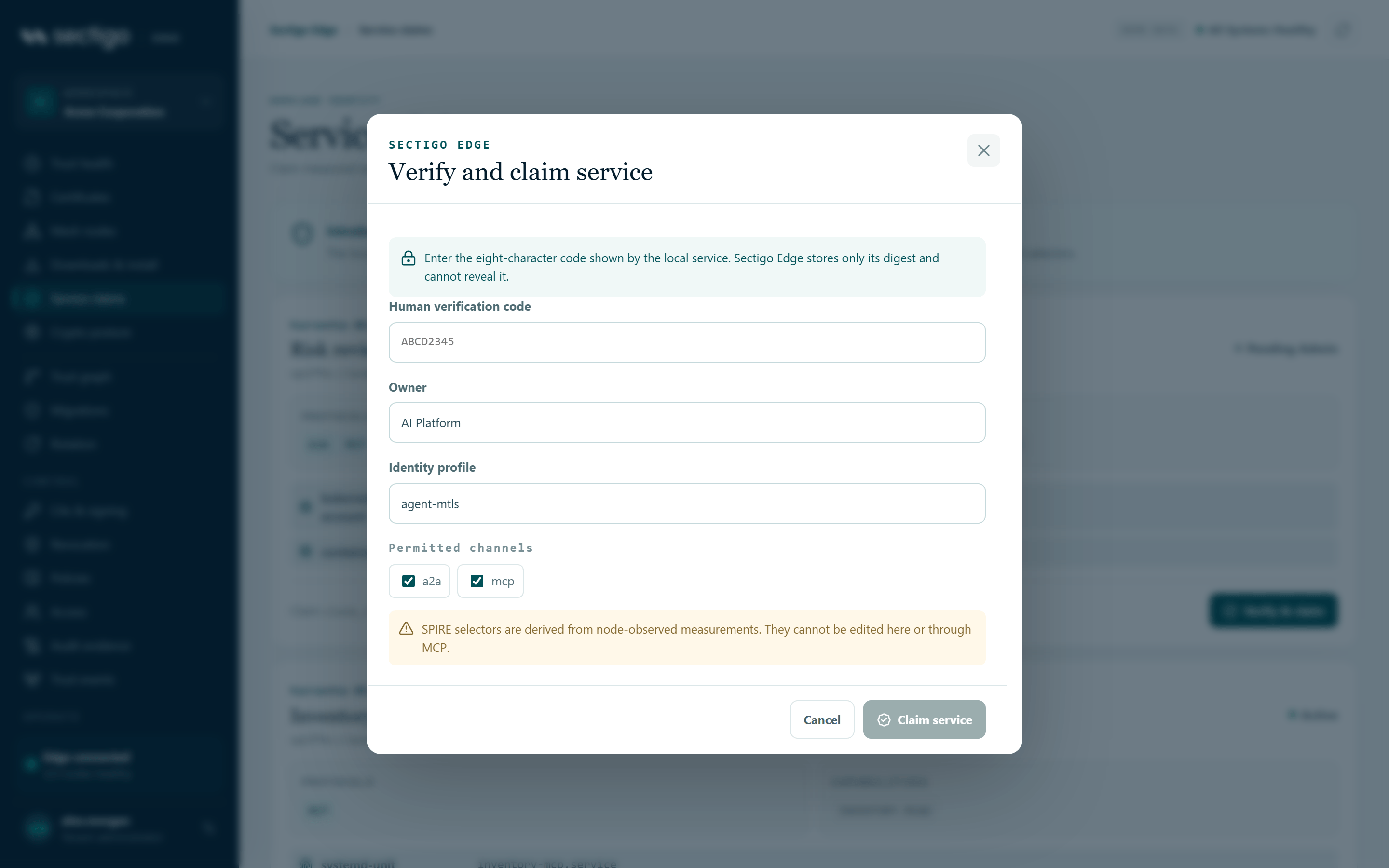
- On the claim card, select Verify & claim.
- Enter the Human verification code exactly as the service shows it. Letters are converted to upper case as you type.
- Check the Owner. It is pre-filled when the runtime suggested one; enter a team or person, for example
team@company.com. - Check the Identity profile. The default is
agent-mtls. - Under Permitted channels, leave selected only the protocols this service should use. All requested protocols are selected by default.
- Select Claim service.
The console confirms: Signed registration grant approved. The node will verify and reconcile it into SPIRE. The card status changes to approved, then to active once the node finishes.
Dialog fields and rules
| Field | Rule |
|---|---|
| Human verification code | Exactly eight characters from A–H, J–N, P–Z and 2–9. The letters I and O and the digits 0 and 1 are never used. Sectigo Edge stores only a digest of the code and cannot show it to you. |
| Owner | At least three characters. |
| Identity profile | The workload profile the identity is issued under, for example agent-mtls. |
| Permitted channels | At least one. You can only choose from the protocols the runtime requested. |
Claim service stays disabled until all four rules are met.
SPIRE selectors are derived from node-observed measurements. They cannot be edited here or through MCP. SVID lifetimes are not set in this dialog; the console requests the default lifetimes.
Permissions
| Action | Roles |
|---|---|
| View claims | Every role |
| Verify and claim | PKI Operator, Tenant Admin. Requires MFA within the last ten minutes. |
Troubleshooting
| Symptom | Cause and fix |
|---|---|
| Claim service is greyed out | The code is not eight valid characters, the owner is shorter than three characters, or no channel is selected. |
| The claim is rejected after submitting | The code does not match, the claim expired, or your MFA is older than ten minutes. The message shown comes from the service. Confirm the code with the service owner, sign in again if needed, and retry. |
A claim stays approved | The node has not yet reconciled the grant. Check the node on Mesh nodes and its SPIRE integration on Integrations. |
| A runtime you expect is missing | Claims appear only after the runtime proves key possession to a local Mesh Node. Check that the runtime points at the correct node. |