Migrations
The Migrations screen (page heading Migration control) moves certificates from their current version to a new one across many services, in safe, dependency-ordered waves. Use it for changes such as moving to a new signature algorithm or a post-quantum transition.
ConsoleMigrationsWhat it's for
A migration plan takes certificate sets that already have a healthy replacement staged in their standby slot and promotes those replacements in waves:
- A small canary wave goes first.
- Each wave must stay healthy for a full observation period.
- If any target fails, that target and every peer promoted in the same wave are automatically restored to their exact previous certificate, and the plan pauses.
Every plan is immutable: it is bound to your current policy, dependency graph, capability evidence, source and target certificates and maintenance window. A different person must approve it before it can run.
What you see
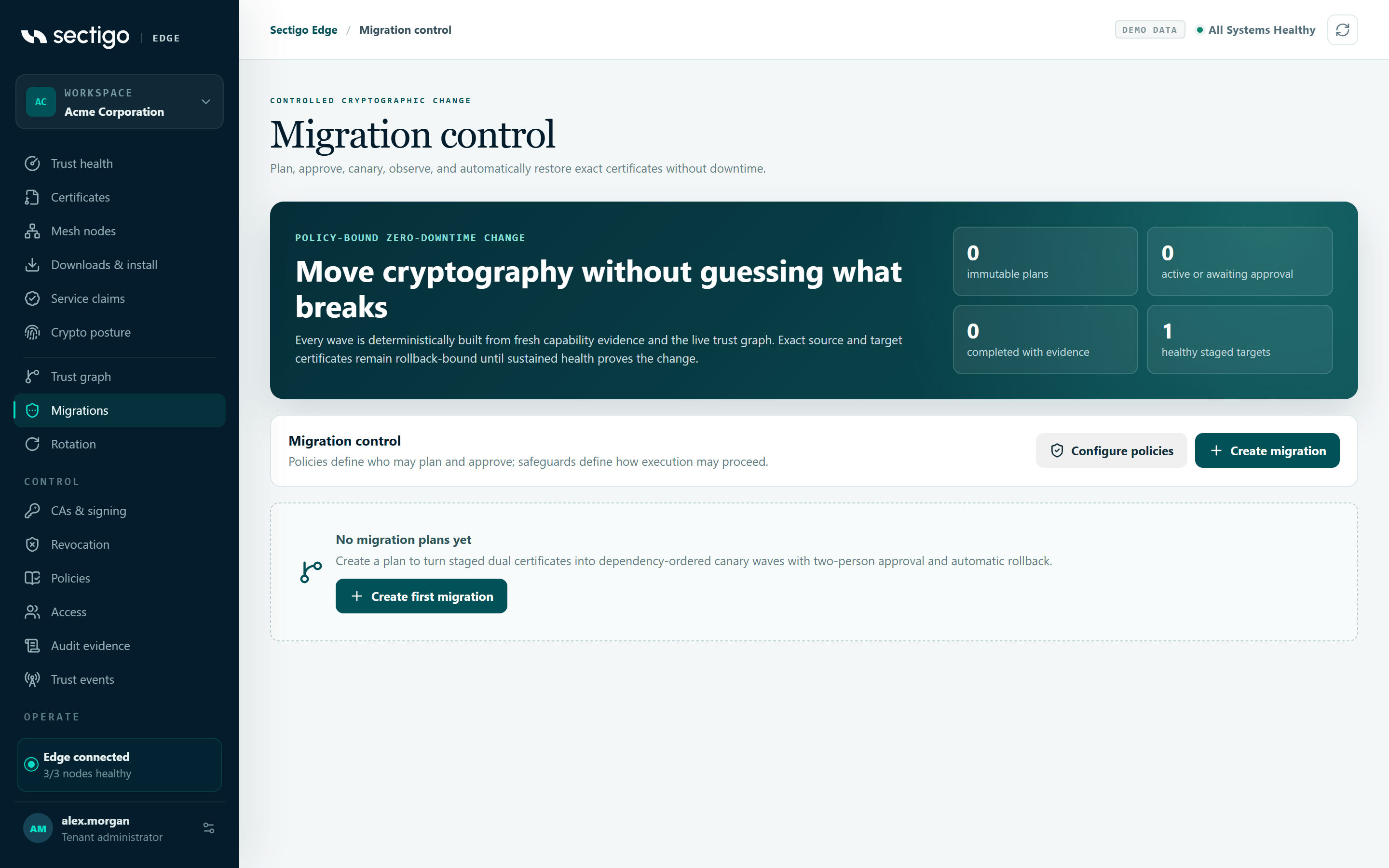
Counters
| Counter | Meaning |
|---|---|
| immutable plans | All plans in the workspace. |
| active or awaiting approval | Plans not yet completed, cancelled, expired or failed. |
| completed with evidence | Plans that finished successfully. |
| healthy staged targets | Certificate sets that are eligible to be migrated now. |
The toolbar has Configure policies (opens Policies) and Create migration. Policies define who may plan and approve; safeguards define how execution may proceed.
When there are no plans, the screen shows No migration plans yet with a Create first migration button.
Plan list and plan detail
The PLANS list shows each plan's name, number of targets and waves, and status. Select a plan to see:
| Field | Content |
|---|---|
| Ordering line | Callers migrate before the services they depend on. or Providers migrate before their callers. |
| Plan digest | The plan's SHA-256 digest. Approval and start are bound to this exact value. |
| Maintenance window | Start and end of the window. |
| Rollback boundary | Always Automatic · exact source certificate. |
| Deterministic execution waves | Each wave (CANARY, WAVE 2, …), its target count, wave status and each target's status. The header shows the sustained observation time in seconds. |
| Proposed by / Approved by | The two identities on the plan. |
The WHAT HAPPENS panel summarizes the lifecycle: evidence is frozen, a second person approves, canary commands leave outbound, health is sustained, then the plan expands or restores.
Create a migration plan
Before you start
A certificate set is eligible only when:
- it has an active certificate, and
- its standby slot holds a staged certificate that reports healthy, and
- it is not already part of another active plan (it shows locked by active plan).
Stage the standby through a deployment integration such as NGINX, Apache, Java PKCS#12 or HashiCorp Vault, with current node evidence. If nothing is eligible, the planner shows No eligible staged certificate sets.
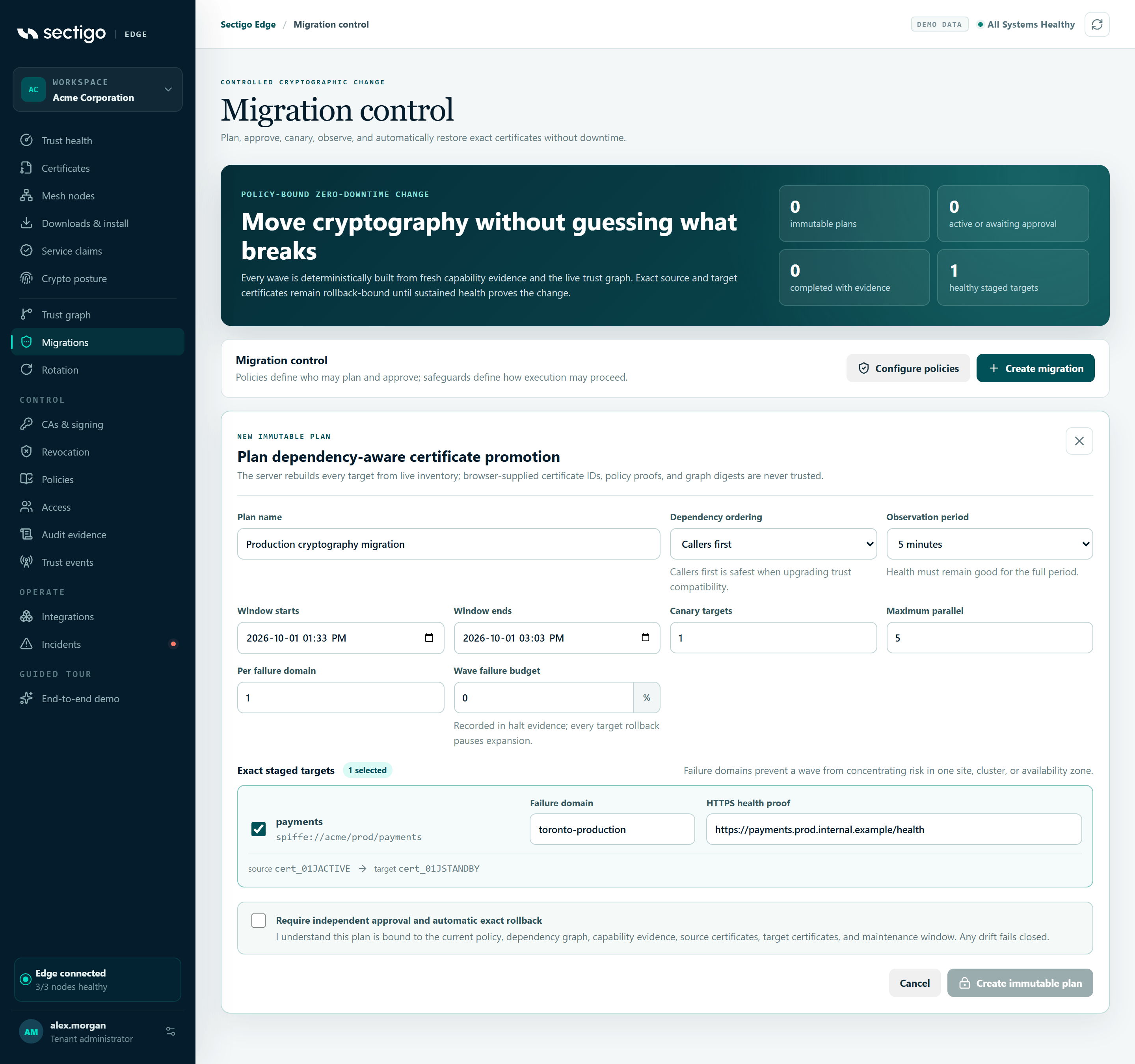
- Select Create migration.
- Enter a Plan name (3 to 120 characters).
- Choose Dependency ordering. Callers first is safest when upgrading trust compatibility.
- Choose the Observation period: 30 seconds, 5 minutes, 15 minutes or 1 hour. Health must remain good for the full period.
- Set Window starts and Window ends. The default window starts now and lasts 90 minutes.
- Set the safeguards: Canary targets, Maximum parallel, Per failure domain and Wave failure budget.
- Under Exact staged targets, select each certificate set to include. For each one, enter:
- a Failure domain, such as a site, cluster or availability zone (for example
production-a), and - an HTTPS health proof URL, for example
https://service.your-domain.com/health.
- a Failure domain, such as a site, cluster or availability zone (for example
- Select Require independent approval and automatic exact rollback to acknowledge that the plan is bound to current evidence and that any drift fails closed.
- Select Create immutable plan.
The console confirms: Immutable migration plan created. A different administrator must approve its exact digest. The plan appears with status awaiting approval.
Planner fields
| Field | Allowed values | Default |
|---|---|---|
| Plan name | 3–120 characters | Production cryptography migration |
| Dependency ordering | Callers first, Providers first | Callers first |
| Observation period | 30 seconds, 5 minutes, 15 minutes, 1 hour | 5 minutes |
| Window starts / Window ends | Date and time in your local time zone. The window must end in the future and last no more than seven days. | Now / now + 90 minutes |
| Canary targets | 1–50 targets in the first wave | 1 |
| Maximum parallel | 1–500 targets per wave; cannot be smaller than the canary | 5 |
| Per failure domain | 1–50 targets from the same failure domain per wave | 1 |
| Wave failure budget | 0–50 % | 0 |
| Failure domain (per target) | Required for each selected target | Derived from the node name, if available |
| HTTPS health proof (per target) | Required; must start with https://. The host must be covered by the staged certificate's names. | Derived from the staged certificate, if available |
The wave failure budget is recorded in halt evidence. Any single target rollback still pauses expansion.
The server rebuilds every target from live inventory. It does not trust certificate IDs, policy proofs or graph digests supplied by the browser.
Approve a plan
The approver must be a different person from the proposer.
- Sign in as the second administrator and open ConsoleMigrations.
- Select the plan in the PLANS list and review its targets, waves, window and Plan digest.
- Select Approve exact digest.
The console confirms: Independent approval recorded for the exact plan digest. The proposer sees the button disabled, with the hint A different immutable user must approve.
Run a plan
- Open the approved plan.
- During the maintenance window, select Start first wave. The button is disabled before the window starts and after it ends.
- Watch the wave and target statuses update as nodes report.
The console confirms: First wave dispatched. Nodes will report promotion and sustained health evidence.
Each assigned Mesh Node re-checks the exact source and target certificates, its policy and its adapter before promoting. After the observation period, it opens a fresh TLS connection and verifies that the exact target certificate is being served.
Plan statuses
| Status | Meaning |
|---|---|
awaiting approval | Created; waiting for a second person. |
approved | Approved; can start inside the maintenance window. |
running | Waves are being promoted and observed. |
rolling back | A target failed; restoration of the wave is in progress. |
paused | The failed wave was fully restored to its exact source certificates. Waiting for recovery. |
completed | Every target is healthy on its new certificate. |
failed | Restoration could not be verified. Tenant issuance is paused for safety. |
cancelled | Closed through an approved recovery. |
expired | The plan was not completed in time. |
Target statuses
pending, commanded, promoted, observing, healthy, failed, rollback commanded, rolled back.
Recover after a rollback
A rolled-back plan stays locked. There is no unpause switch. Closing the incident takes two people, like approval.
If a plan halted, the plan detail shows Execution halted with the reason.
- On the Mesh Node, re-stage every exact target and confirm it reports healthy.
- Open the paused plan. Under Close the rollback incident safely, describe what you fixed in Verified remediation (8 to 500 characters).
- Select Freeze recovery evidence. The console confirms: Recovery evidence frozen. A different administrator must approve it before target locks are released.
- A second administrator opens the plan, reviews Independent recovery approval required (requester, expiry and remediation) and selects Approve exact recovery digest.
- The plan becomes
cancelledand shows Rollback incident closed with evidence. Its targets are unlocked. - To try again, select Create verified successor. The planner opens with the same targets selected and a name ending in recovery successor. The new plan records the failed plan and its approved recovery, but rebuilds all evidence fresh and needs its own approval.
In the demo, the approve buttons read Simulate independent approval and Simulate independent recovery approval, and an approved plan offers Simulate failed canary and Run healthy wave instead of Start first wave.
Permissions
| Action | Roles |
|---|---|
| View plans | Every role |
| Create, approve and start a plan; request and approve recovery | PKI Operator, Tenant Admin. Requires MFA within the last ten minutes. |
| Approve a plan or recovery | Must be a different person from the one who created it. |
See Cryptographic migrations for the operational runbook.
Troubleshooting
| Message or symptom | Cause and fix |
|---|---|
| Select at least one staged certificate set. | No target is selected. |
| Maximum parallel targets cannot be smaller than the canary. | Raise Maximum parallel or lower Canary targets. |
| Acknowledge the exact evidence and automatic rollback controls. | Select the acknowledgement checkbox. |
| Describe the verified remediation in at least 8 characters. | The remediation statement is too short. |
| Create immutable plan is greyed out | The acknowledgement is not selected, nothing is eligible, or the plan is being created. |
| Approve exact digest is greyed out | You created the plan. Ask a different administrator. |
| Start first wave is greyed out | The maintenance window has not started or has ended. Create a new plan with a new window if it has ended. |
| Approval or start is rejected | Something changed since the plan was created: policy, topology, capability evidence, certificates or adapter state. Create a new plan. |
| A target shows locked by active plan | It is already in another plan that has not finished. |