Workspace reviews
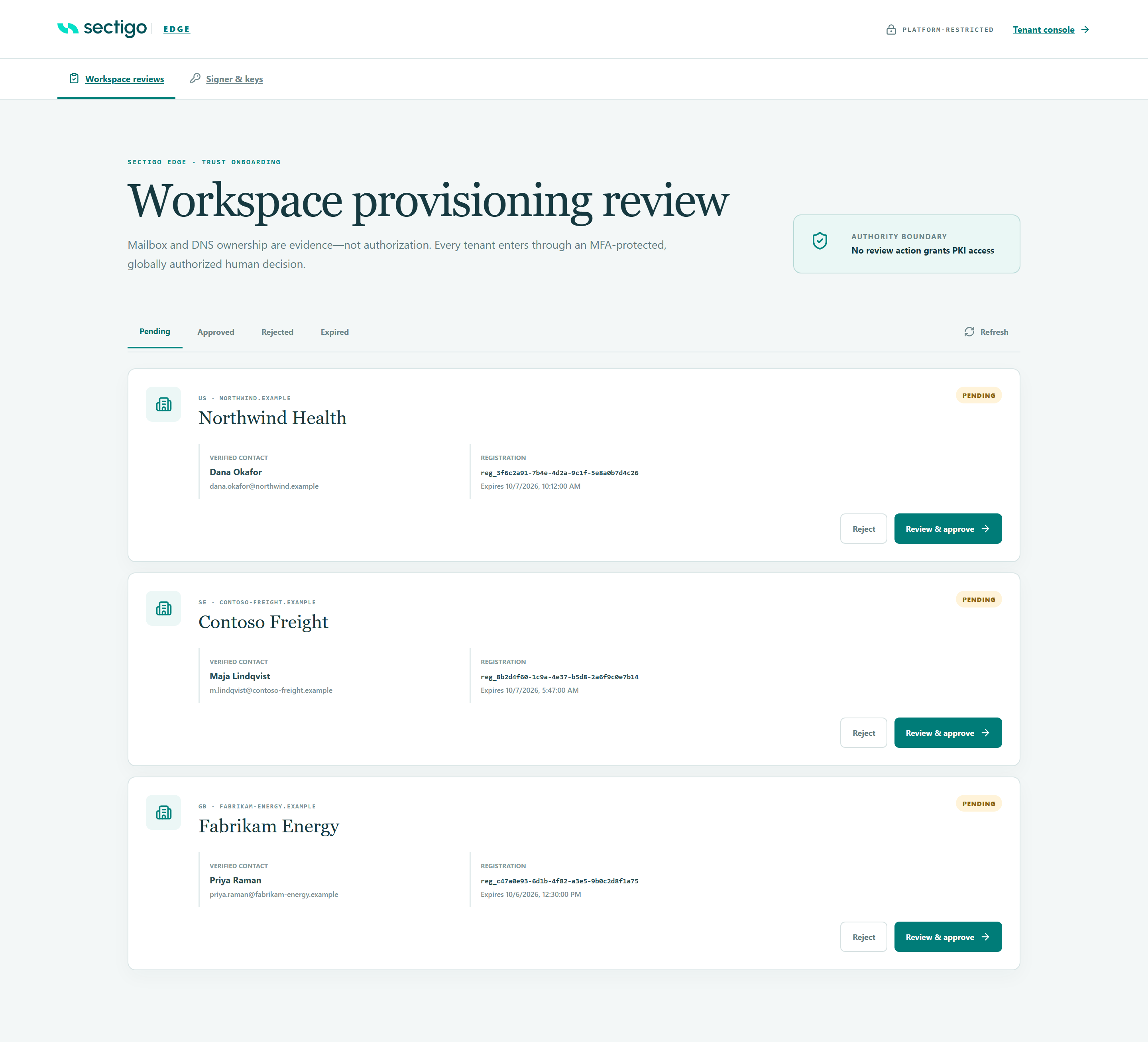
The Workspace reviews screen is where Sectigo platform reviewers decide which verified workspace requests become workspaces. A request appears here only after the requester has confirmed their work email and proved control of their domain with a DNS TXT record.
Mailbox and DNS proof show who controls the domain. Your review is the separate, human decision that creates the workspace. No review action grants PKI access: approval does not connect a CA or grant any signing permission.
What you need
- A platform administrator account with permission to review workspaces. Without it, the screen does not load.
- A sign-in with MFA completed within the last ten minutes at the moment you record a decision. See The ten-minute rule.
Open the screen
Go to /console/platform/onboarding. The page is marked PLATFORM-RESTRICTED and has two tabs: Workspace reviews and Signer & keys. Tenant console in the top right returns you to the normal console.
Read a request
Use the filter at the top to choose pending, approved, rejected or expired requests, and Refresh to reload. Each request shows:
| Field | Meaning |
|---|---|
| Country · domain | The two-letter country code and the verified enterprise domain. |
| Organisation | The organisation name the requester entered. |
| Status | pending, approved, rejected or expired. |
| Verified contact | The requester's name and their confirmed work email (which is on the verified domain). |
| Registration | The registration ID (for example reg_3f6c2a91-…) and when the request Expires. |
| Tenant | Shown on decided requests: the reserved tenant ID and the decision code. |
A request expires seven days after the requester signed up. Decide before the Expires time, or the request moves to expired and the requester must sign up again.
Approve a request
- On a pending request, select Review & approve. The APPROVAL dialog opens.
- Check the Reserved tenant identifier. It is pre-filled from the domain (for example
northwindhealth.combecomesnorthwindhealth-com). Edit it if needed; see Tenant ID rules. - Choose a Decision code (see Decision codes).
- Type
APPROVE WORKSPACEexactly, in capitals, in the confirmation field. - Select Approve for provisioning.
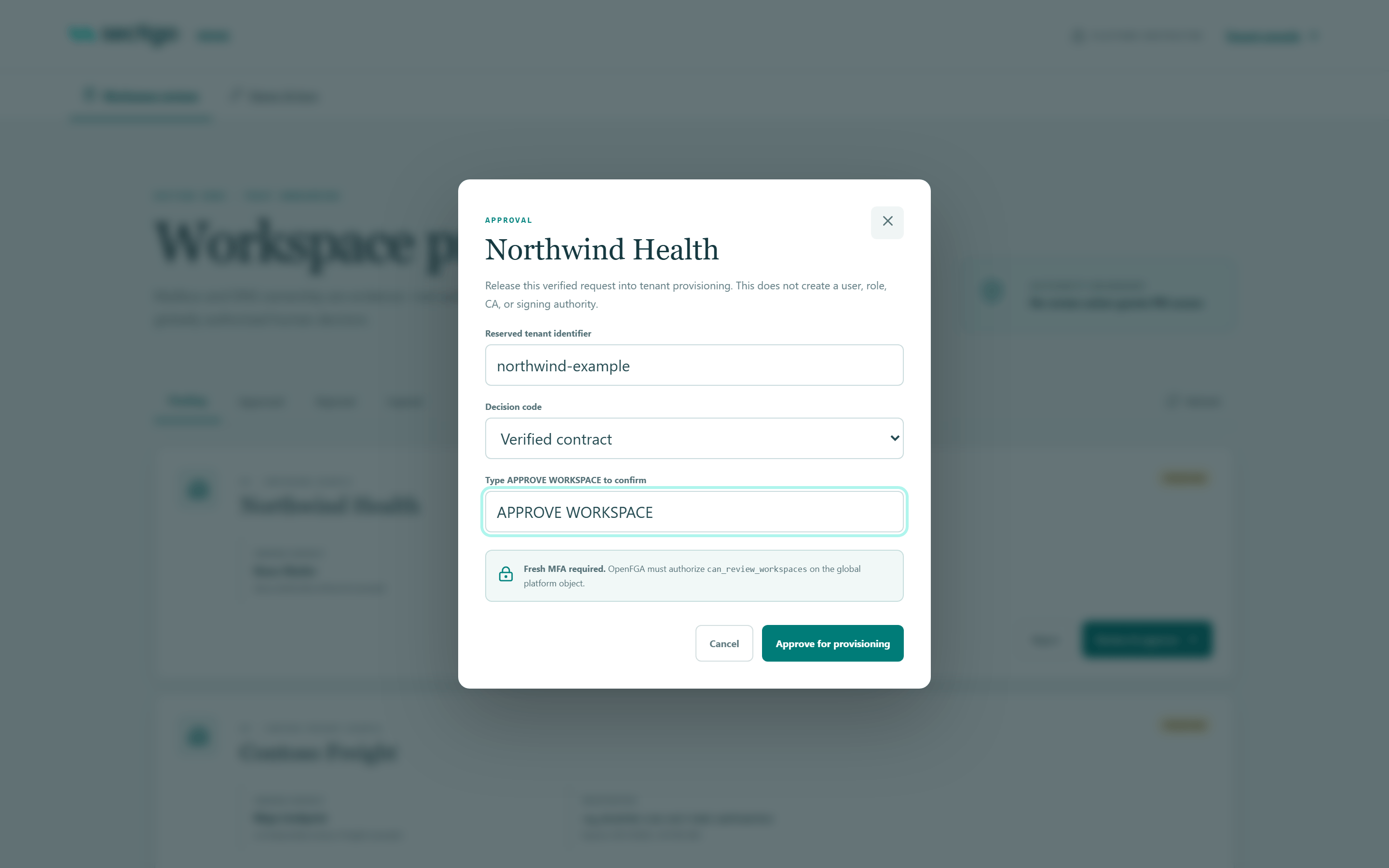
On success the dialog closes and a notice reads Organisation was released to the provisioning queue.
What approval does
- Reserves the tenant ID for this workspace.
- Activates the requester's account as the workspace's first administrator. On their next sign-in they are asked to enrol MFA.
- Does not create other users, connect a CA, or grant certificate-signing authority.
The requester is not emailed about the decision. They find out by signing in. You may want to let them know through your usual customer channel.
Tenant ID rules
| Rule | Detail |
|---|---|
| Characters | Lowercase letters a–z, digits 0–9 and hyphens -. The field lower-cases input and removes other characters as you type. |
| Length | 3 to 63 characters. |
| First character | A letter or digit (not a hyphen). |
| Uniqueness | Must not already be reserved by another approved workspace. |
Choose the ID carefully: it identifies the workspace everywhere, and this screen has no way to change it after approval.
Reject a request
- On a pending request, select Reject. The REJECTION dialog opens.
- Choose a Decision code.
- Type
REJECT WORKSPACEexactly, in capitals. - Select Reject request.
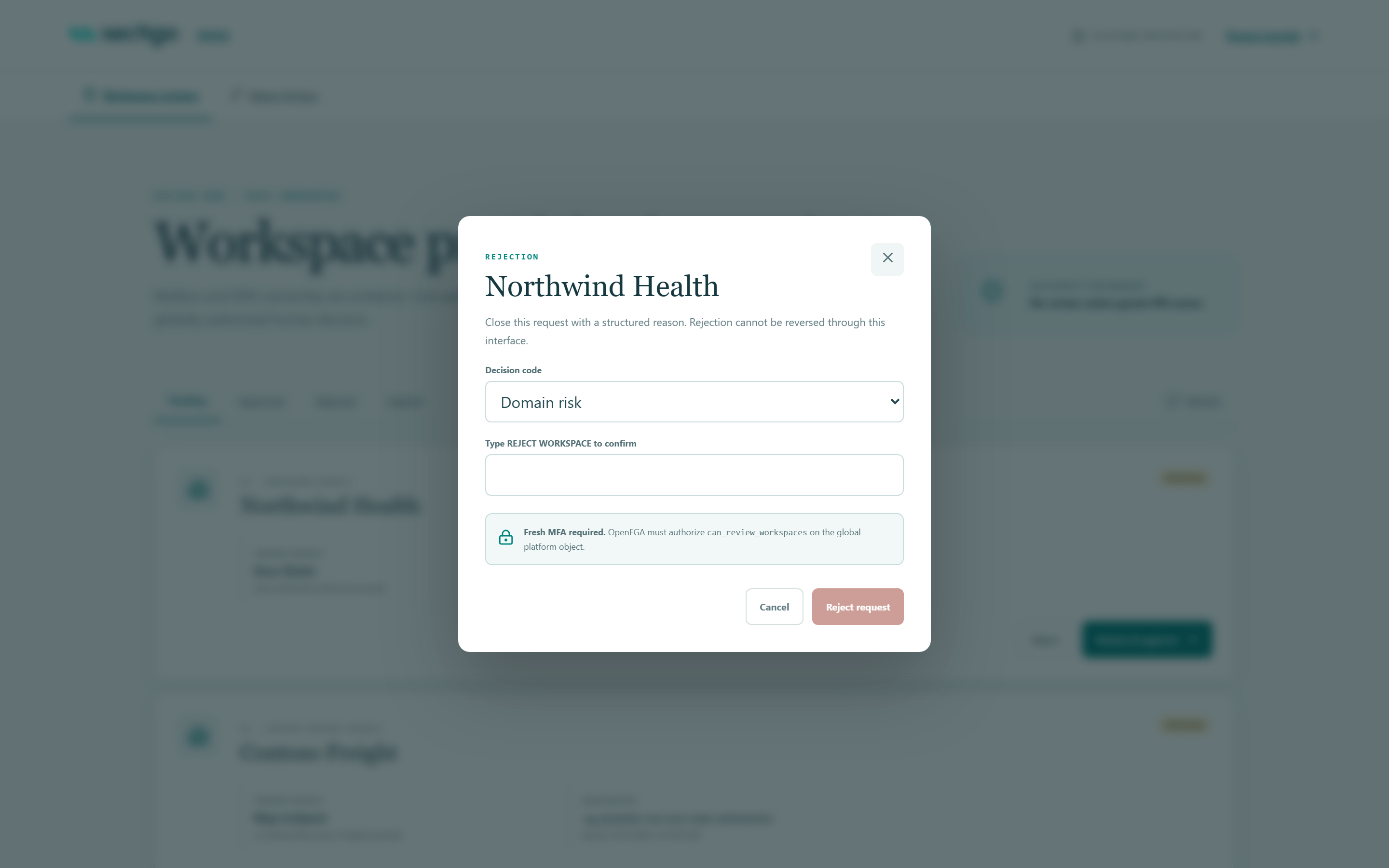
A rejection cannot be reversed from this screen. The requester would need to submit a new sign-up.
On success the notice reads Organisation was rejected.
Decision codes
Decisions use structured codes only; free-text reasons are not accepted.
| Decision | Code shown in the list | Stored code | Use when |
|---|---|---|---|
| Approve | Verified contract | verified_contract | The organisation has a verified commercial agreement. (Default for approvals.) |
| Approve | Approved trial | approved_trial | The workspace is approved for a trial. |
| Approve | Approved internal | approved_internal | The workspace is approved under an internal arrangement rather than a contract or trial. |
| Reject | Domain risk | domain_risk | The domain or organisation presents unacceptable risk. (Default for rejections.) |
| Reject | Duplicate request | duplicate_request | The organisation already has a request or workspace. |
| Reject | Customer withdrew | customer_withdrew | The requester asked to cancel. |
| Reject | Security review failed | security_review_failed | The request did not pass security review. |
| Reject | Unsupported region | unsupported_region | The organisation's country or region cannot be served. |
The ten-minute rule
Recording a decision is a privileged action. It requires that you completed MFA within the last ten minutes. The dialog reminds you with Fresh MFA required. You can browse and open requests at any time; the check happens when you select Approve for provisioning or Reject request.
If your sign-in is older than ten minutes, the dialog shows:
This action requires an MFA-authenticated privileged session issued within the last ten minutes
with a Re-authenticate button next to it.
- Select Re-authenticate. Your current platform sign-in ends and the page reloads.
- Sign in again, completing MFA.
- The dialog for the same request reopens automatically.
- Check the tenant ID and decision code again. They return to their defaults (the suggested tenant ID and the default code), so any edits you made before re-authenticating are lost.
- Type the confirmation again and submit within ten minutes.
To avoid the prompt, sign in fresh just before working through a batch of reviews, and keep each decision inside the ten-minute window.
If phishing-resistant MFA is required for your account, you may instead see This action requires a recent passkey or phishing-resistant enterprise MFA session. This message does not offer a Re-authenticate button: sign in again to the platform using a passkey or a phishing-resistant enterprise MFA method, then reopen the request.
Troubleshooting
| Message | Cause | What to do |
|---|---|---|
| This action requires an MFA-authenticated privileged session issued within the last ten minutes | Your MFA is older than ten minutes. | Select Re-authenticate; see The ten-minute rule. |
| This action requires a recent passkey or phishing-resistant enterprise MFA session | A phishing-resistant method is required. | Sign in again with a passkey or phishing-resistant enterprise MFA, then reopen the request. |
| Tenant identifier is already reserved by another approved workspace | Another workspace already uses this ID. | Choose a different tenant ID. |
| Approval requires a lowercase tenant identifier | The ID breaks the rules, for example it starts with a hyphen. | Correct the ID. |
| A permitted structured decision code is required | No valid decision code was sent. | Choose a code from the list and resubmit. |
| Workspace review already has a different final decision | Someone else decided this request differently, for example in another tab or by another reviewer. | Select Refresh and check the request under approved or rejected. |
| Workspace provisioning review has expired | The request passed its expiry time. | No action is possible; the requester must sign up again. |
| Workspace provisioning review was not found | The request no longer exists or is not ready for review. | Select Refresh. |
| The review decision was recorded but durable provisioning notification must be retried | Your decision was saved, but a follow-up step did not complete. | Submit the same decision again (same tenant ID and code). Repeating an identical decision is safe. |
| An error banner appears as soon as the page loads | The list could not be fetched, often because your account lacks workspace-review permission or your platform sign-in expired. | Select Refresh. If it persists, sign in again and confirm your platform permissions with whoever manages platform administrator access. |