Sectigo Certificate Manager
Sectigo Certificate Manager (SCM) can act as the issuing certificate authority for your workspace. Unlike the other integrations, SCM runs in the cloud: there is nothing to install or configure on a Mesh Node, and no node is assigned. When a certificate is issued through an SCM connector, Sectigo Edge sends SCM the CSR together with the immutable authorization evidence from the approval quorum; every certificate is requested under the SCM organization and certificate type you configure.
Setting it up has two parts:
- a CA connector in ConsoleCAs & signing that holds your SCM organization ID and certificate type ID; and
- the Sectigo SCM integration in ConsoleIntegrations that points at that connector and a certificate profile.
Requirements
- An SCM account with an organization and an SSL certificate type (profile) for the certificates Sectigo Edge will request.
- The numeric organization ID (shown for your organization under Organizations in SCM) and the numeric certificate type ID (from your SCM certificate settings).
- The
can_manage_capermission and a fresh MFA session in Sectigo Edge.
You never enter SCM passwords or API secrets in the console, and CA private keys are never stored in the Sectigo Edge application plane.
1. Create the SCM CA connector
- Open ConsoleCAs & signing and select Connect a signing authority.
- Enter a descriptive Connector name (at least 3 characters), for example
Production SCM. - Under Sectigo SCM enrollment IDs, enter the SCM organization ID (for example
12345) and the SCM certificate type ID (for example678). Both must be positive whole numbers of up to 10 digits. - Select Sectigo SCM.
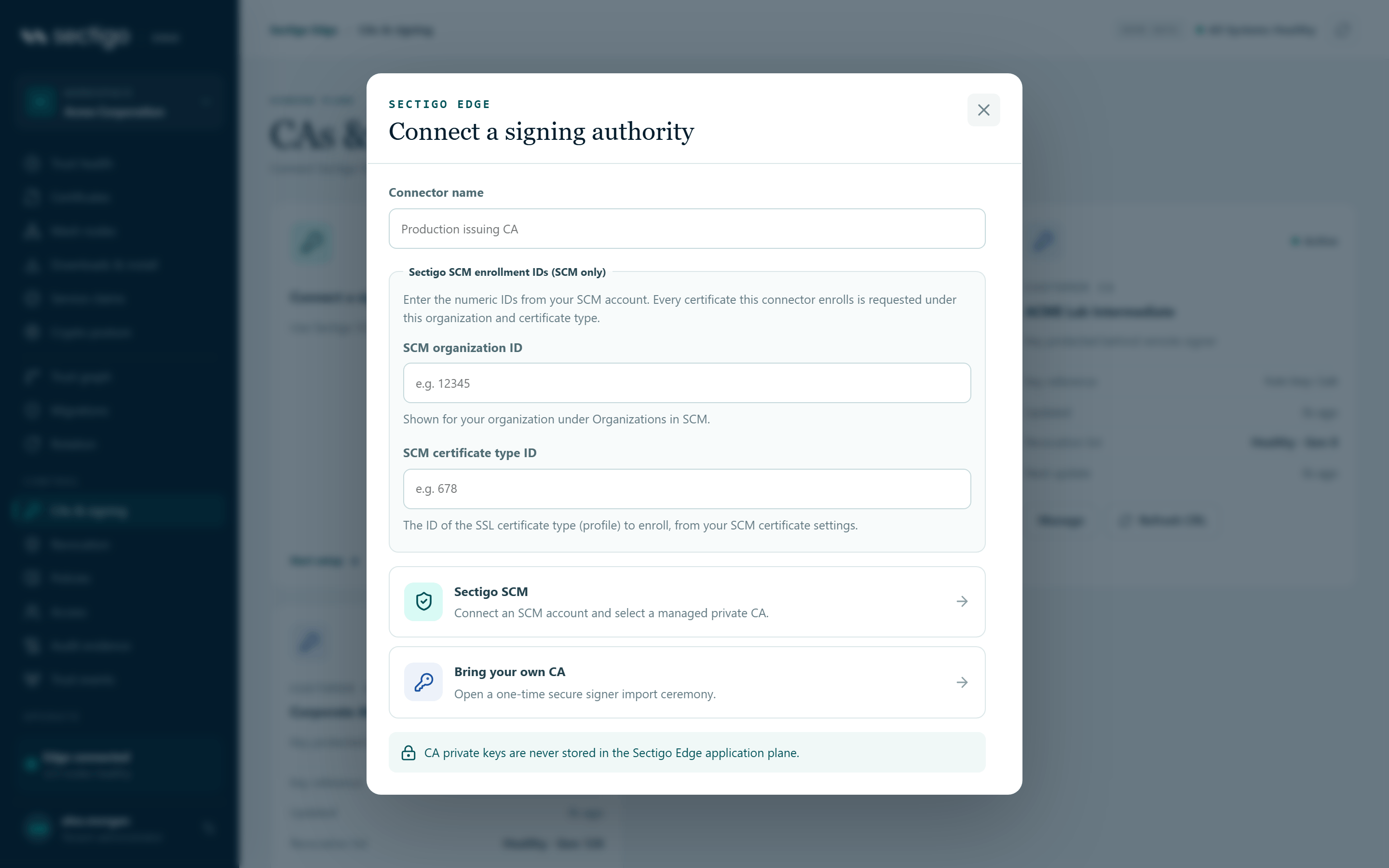
The connector card then shows Org 12345 · Cert type 678. If an ID is missing it shows Missing organization ID, Missing certificate type ID or Missing organization and certificate type IDs — complete them before relying on the connector.
Change the IDs later
Open the connector from ConsoleCAs & signing, edit the SCM enrollment IDs and save. The console confirms: SCM enrollment IDs saved. The signer picks them up at the next registry publication. — new values apply from that publication onward, not instantly. See CAs and signing.
2. Enable the Sectigo SCM integration
- Open ConsoleIntegrations and select Configure on the Sectigo SCM card.
- Select Enable this integration. There is no node selection — SCM runs in the cloud.
- Enter the Certificate / identity profile that should issue through SCM.
- Under Active SCM connector, select the connector you created. Only active SCM connectors are listed.
- Select Save desired state.
The card's target shows Cloud once enabled.
Status and "connectivity not verified"
Sectigo Edge does not currently perform a live connectivity check against SCM from the console. To avoid implying a check that did not happen, the integration is never shown as Healthy just because you saved or tested it:
| Action | Card status | Error shown on the card |
|---|---|---|
| Saved with Enable this integration off | Disabled | — |
| Saved enabled | Degraded | scm connectivity not verified (scm_connectivity_not_verified) |
| Test selected | Degraded | scm connectivity not verified |
After a test the console reports: Test recorded, but connectivity was not verified (scm connectivity not verified). The test is still written to the audit log.
What this means for you: a Degraded status with scm_connectivity_not_verified is the expected state for a correctly configured SCM integration. It is a statement that nothing was verified, not a reported failure. Confirm that the setup works end to end by issuing a test certificate (below).
Policy and rotation
SCM is only the issuer. The approval quorum, your signed policy (profiles, SPIFFE prefixes, DNS suffixes, algorithms, lifetimes) and the protected-signer checks apply exactly as for any other CA. Delivery and rotation are handled by the node-side integrations — ACME, NGINX, Apache, Java PKCS#12, HashiCorp Vault and others — with the same dual-slot staging, health checks and rollback. Revocation, CRL and OCSP for SCM-issued certificates are handled through the protected signer; see Revocation, CRL and OCSP.
Verify
- Request a certificate for a profile bound to the SCM integration, for example through ACME or Request certificate in ConsoleCertificates.
- Confirm it appears under ConsoleCertificates with the expected issuer.
- Confirm the matching order appears in SCM under your organization and certificate type.
Troubleshooting
| Symptom | Cause | Fix |
|---|---|---|
| Enter the SCM organization and certificate type IDs before connecting Sectigo SCM. | One or both IDs empty or not numeric | Enter positive whole numbers |
| Enter a descriptive connector name. | Name shorter than 3 characters | Use a longer name |
| No connector in Active SCM connector | The connector is not active or not an SCM connector | Check it in ConsoleCAs & signing |
| Save desired state is disabled | Integration enabled without a connector, or the profile is shorter than 2 characters | Select a connector and enter a profile |
Card Degraded with scm connectivity not verified | Expected — no live check exists | Verify by issuing a test certificate |
| Issuance through SCM fails | Wrong organization or certificate type ID, or the IDs were changed and the registry has not been republished yet | Correct the IDs; allow for the next registry publication |
| Permission or re-authentication error on save | Missing can_manage_ca or stale MFA | Ask an administrator for the permission; re-authenticate |